DEVUP Code — the AI code assistant for VS Code, Cursor and Antigravity
DEVUP Code is an AI code assistant for VS Code, Cursor and Antigravity, free to install. It adds a DEVUP AI panel to your editor where you ask questions about your code, and requests are paid from your DEVUP balance.
Editors
Pick your editor


Google Antigravity
Get it from Open VSX in Antigravity's Extensions view, opened with Ctrl+Shift+X.
Leaves Antigravity's built-in AI chat in place: DEVUP AI has a panel of its own.
Features
What it does in your editor
Apply with a diff
Apply opens a reply's code as a diff against your file. Nothing changes until you click Accept; Reject drops it and Undo reverts it.
Codebase context
Add the current file, a selection, open editors or any file in your workspace to a question, or type @ to pick a file by name.
Editor actions
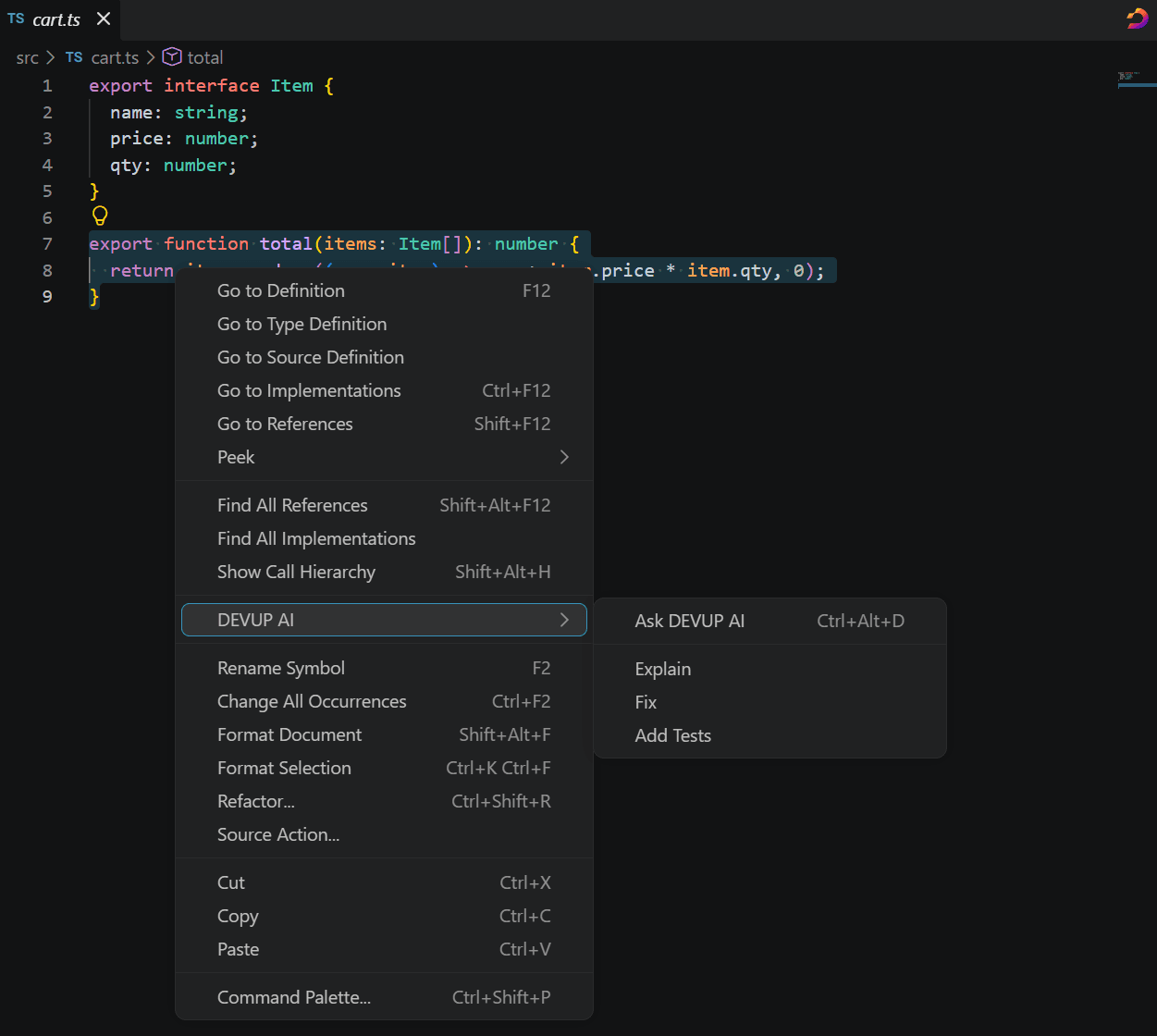
Right-click selected code and open the DEVUP AI submenu to ask about it, or to Explain, Fix or Add Tests.
Project instructions
Save your own instructions once in Settings for every chat, and add AGENTS.md or .devupai/rules.md at a folder root for project rules.
Walkthrough
How it works in practice
Picture a small JavaScript blog. Its slugify helper turns post titles into URLs, and titles with accents or punctuation keep characters that have no place in a link. Here is that fix, from the first question to the tests that cover it.
export function slugify(title) {
  return title.trim().toLowerCase().replace(/\s+/g, "-");
}

// slugify("Hello World")    returns "hello-world"
// slugify("Crème brûlée!") returns "crème-brûlée!"- Select the
slugifyfunction and press Ctrl+Alt+D to bring those lines into the DEVUP AI chat. - Type
@slugin the message box and pickslugify.test.js, so the current tests travel with the question. Each attachment sits as a chip above the message box, and a small gauge estimates the share of the model's context the message will use. - Choose a model in the picker and write the request: replace accented letters with plain ones, drop punctuation, and keep today's output for plain titles. The answer streams in as it is written, and Esc stops it if it drifts off course.
- On the reply's code block, choose Apply. The rewritten helper opens as a diff, and
slugify.jsstays untouched while you compare the old and new code. - Happy with it? Click Accept and the change is written. Reject would have left the file alone, and Undo takes an accepted change back.
- Select
slugify, then right-click, open DEVUP AI and choose Add Tests. Drop the new cases intoslugify.test.jswith Insert, a single undoable edit at your cursor, or give them a fresh unsaved editor with New file. - Run
npm test. If the editor underlines a problem in the new code, open Quick Fix on that line and choose Fix with DEVUP AI: the chat receives the code along with the errors or warnings the editor reports for it. - The conversation is saved on this computer. Reopen it from History next week, and pin it if it should always stay.
Each step has more detail in the docs: files and context, editor actions and Apply, and chat, models and history.
Use cases
Everyday tasks it helps with
Understand unfamiliar code
Inherited a module nobody documented? Select the function that puzzles you, right-click and choose DEVUP AI, then Explain. Keep asking follow-up questions in the same chat; with a reasoning model you can watch its thinking as it happens and reopen it under the reply.
Review a larger change first
A refactor that spans many lines deserves a careful read. Apply lays the whole proposal out as a diff, and the file waits for your decision. For a second opinion, request the last reply again from another model; your default model stays as it was.
Share team conventions
Put your commands, code style and testing habits in an AGENTS.md at the project root and commit it. DEVUP AI reads that file at each folder root, so teammates who use DEVUP Code start from the same rules. Anyone can switch it off, and the Instructions page in Settings lists everything the model receives. More in instructions and project rules.
Answers in your language
Replies can follow the language of your question, or always arrive in English, French or Arabic. Pick one with devupai.chat.replyLanguage and every chat uses it.
At a glance
Ways to bring code into the chat
| Entry point | What it does | Learn more |
|---|---|---|
| + in the message box | Attaches the current file, a selection, your open editors or a file from the workspace. | Files and context |
@ in the message box | Finds a workspace file by its name and attaches it. | Files and context |
| Ctrl+Alt+D | Brings selected code into the chat; with nothing selected, it opens the message box. | Editor actions |
| Right-click, then DEVUP AI | Offers Ask DEVUP AI, Explain, Fix and Add Tests for the selected code. | Editor actions |
| Quick Fix, then Fix with DEVUP AI | Sends code with an error or warning to the chat, together with its problems. | Editor actions |
Models
Choose your model
Search the model picker, narrow it with capability filters, and choose from models grouped by model maker. You can switch from the message box at any point, even mid-chat, and every reply names the model that wrote it.
See the model list for the models you can chat with.
Payments
Built for Algerian developers
Installing DEVUP Code costs nothing; you pay for requests from your DEVUP balance. That balance is held in Algerian dinars, and topping it up works with BaridiMob, CIB or Edahabia.
- Your balance in dinars shows in the status bar and at the top of the DEVUP AI panel.
- When a request needs more than your balance holds, DEVUP AI tells you and offers Top up and Refresh balance.
Questions about a top-up? Contact support.
Tips
Settings worth knowing
- Pick your send key in
devupai.chat.sendWith: Enter or Ctrl+Enter. Shift+Enter starts a new line with either.
The settings reference lists every setting with its default, and commands and shortcuts lists every command with its keys.
Security
Sign-in, secret files and Restricted Mode
- You approve sign-in on devupai.com, so there is no API key to copy into the editor.
- Files that may hold secrets, like
.envfiles, SSH and Git folders, private keys and certificates, never show up in file search, can't be attached, and are never changed by DEVUP AI. - In Restricted Mode, DEVUP AI still chats and reads your attachments, but writes no files and skips project rules.
Read security in DEVUP Code for the full picture, and the privacy policy for how DEVUP AI handles data.
Get started
Get started in a few steps
- Install the extension: VS Code takes it from the Visual Studio Marketplace, Cursor and Antigravity from Open VSX.
- Sign in: choose Sign in with DEVUP and confirm with Allow access on devupai.com.
- Ask: open DEVUP AI from the activity bar and ask a question about your code.
For each step in detail, follow Get started in the docs. Sign in and account covers API keys and signing out, and Troubleshooting helps when something doesn't go as expected.
Visual Studio Code
- Open VS Code.
- Press Ctrl+Shift+X to open the Extensions view.
- Search DEVUP AI.
- Click Install on DEVUP AI — AI code assistant.
Cursor
- Open Cursor.
- Open the Extensions view.
- Search DEVUP AI.
- Click Install on DEVUP AI — AI code assistant.
Google Antigravity
- Open the Antigravity editor.
- Press Ctrl+Shift+X to open the Extensions view.
- Search DEVUP AI.
- Click Install on DEVUP AI — AI code assistant.
DEVUP Code is this site's name for the extension. In the Extensions view, search "DEVUP AI". The listing reads "DEVUP AI — AI code assistant", and the panel is titled "DEVUP AI".
FAQ
Questions and answers
Yes. The extension costs nothing to install. The requests you send are paid from your DEVUP balance.
Requests are charged to your DEVUP balance, while the extension itself is free to install. The balance is in Algerian dinars, and BaridiMob, CIB and Edahabia can all be used to add funds to it.
VS Code, Cursor and Antigravity, on desktop. In VS Code you install it from the Visual Studio Marketplace; in Cursor and Antigravity, from Open VSX.
No. Choose Sign in with DEVUP and allow access on devupai.com, and the editor finishes signing you in. Pasting a DEVUP API key is still possible, and it is the option for remote and web windows.
No. DEVUP AI works in a panel of its own and doesn't replace your editor's built-in AI chat.
Choose from the model picker in the DEVUP AI panel: a searchable list grouped by model maker, with capability filters. Switch whenever you like, even mid-chat. The DEVUP Code models page lists the models you can chat with.
Yes. Choose Apply on a code block in a reply and the change opens as a diff; your file is only written when you accept it. Reject drops the proposal, and Undo reverts a change you accepted.
On this computer. Open History to search, pin, rename, delete or reopen a chat. You can also stop saving chats, or keep only the latest ones; pinned chats are always kept.
Related
Start coding with DEVUP Code
Create your DEVUP AI account, then sign in from the editor.


