An agent that plans and edits your project with you
The Agent tab opens beside your code for one task. Choose Plan to plan the work before any file is touched, Ask before edit to review each proposed change as a diff, or Edit automatically to let the changes land in the editor, unsaved, with a restore point. Switch modes with Shift+Tab.
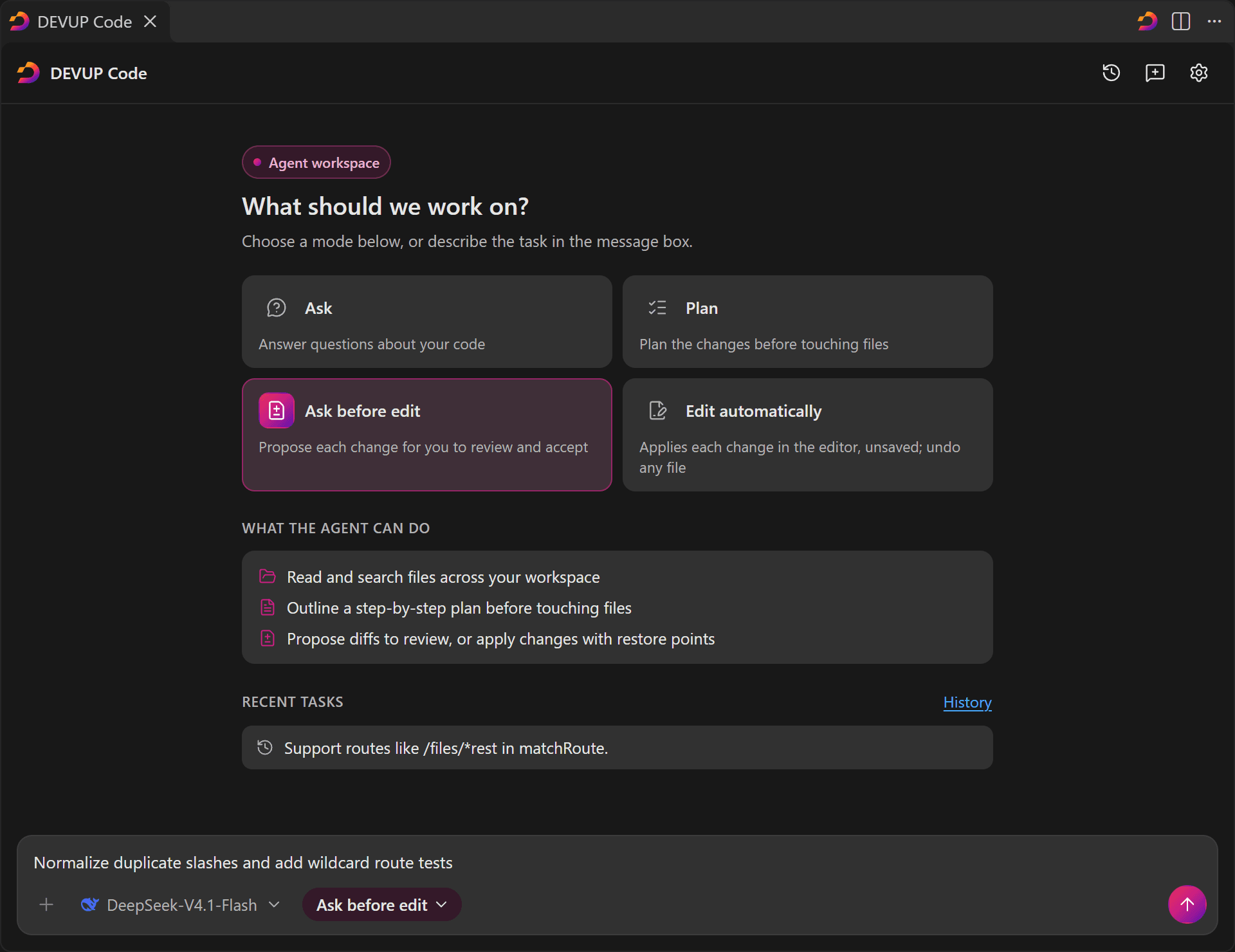
Open the Agent tab
There are three ways into the Agent tab, and each one lands you in a tab of its own beside your code, separate from the DEVUP Code side panel.
- In the side panel's mode menu, choose Agent, or go straight to Plan, Ask before edit or Edit automatically: the tab opens in that mode, and anything you had typed in the side panel's message box comes with it.
- Run DEVUP Code: Open agent tab from the Command Palette to open a tab.
- Click the DEVUP Code button in the editor title bar, which opens the Agent tab from any editor.
Compare
The four modes of the Agent tab
| Mode | What it does | What it writes |
|---|---|---|
| Ask | Answers questions about your code, reading the files it needs along the way. | Nothing. |
| Plan | Plans the changes before touching files, so you can read the plan first. | Nothing. |
| Ask before edit | Proposes each change for you to review and accept. | Only the files you accept, into the editor, unsaved. |
| Edit automatically | Applies each change in the editor, unsaved; undo any file. | Each change, unsaved, with a restore point kept before it. |
In the tab's message box, Shift+Tab moves to the next mode, so you can go from a question to a plan to the edits without leaving the keyboard.
Steps
How the agent works on a task
In every mode the agent can list, read and search the files of your workspace, step by step, and each read shows as a step in the reply, so you always see which files shaped the answer.
Before its first read, a card above the message box asks Which files may this task read? You answer once per task: Allow for this task, Only files I attach, or Choose a folder… to narrow it down.
Review every change
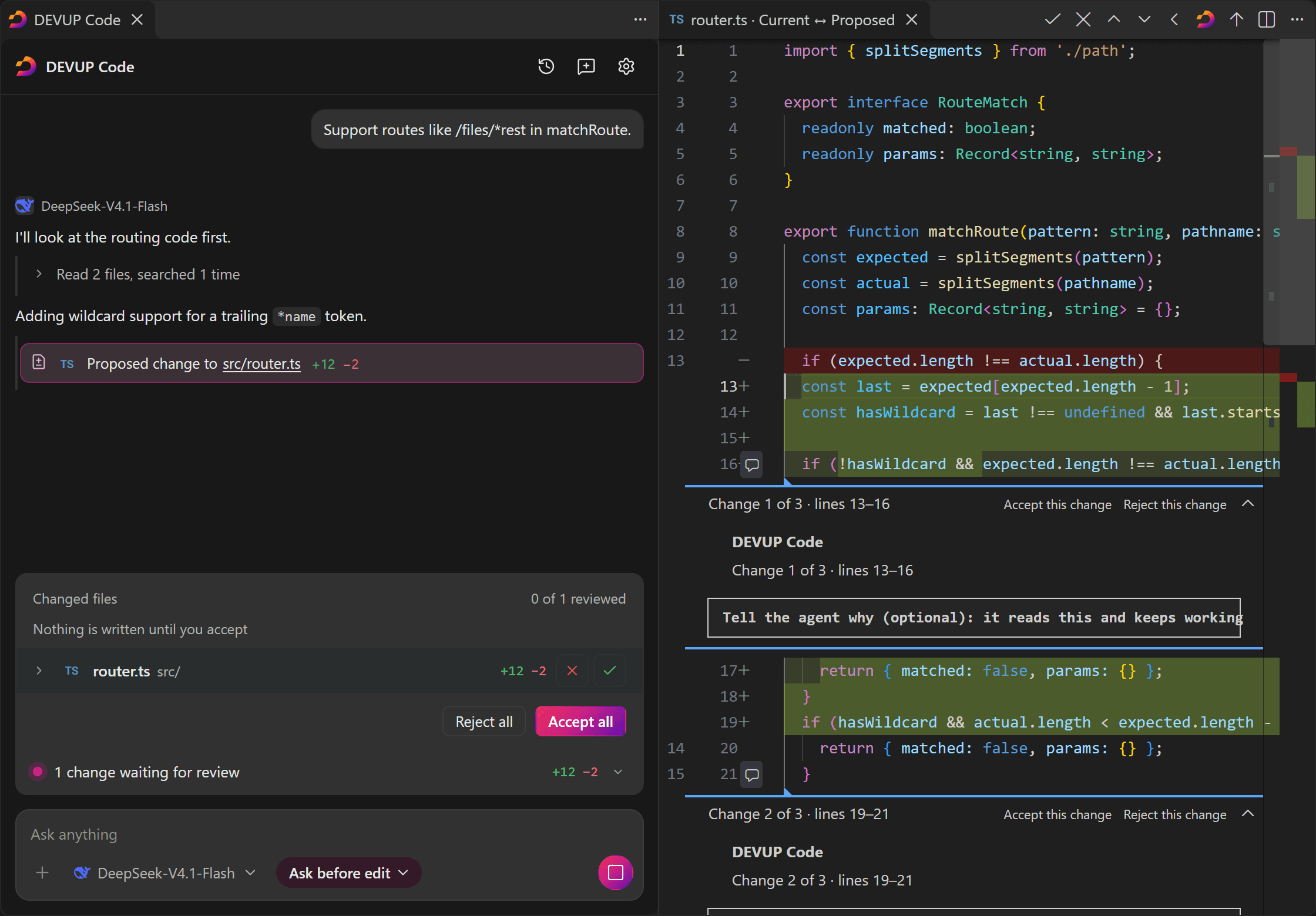
In Ask before edit, the files the agent wants to change wait in the changes strip above the message box, under the line Nothing is written until you accept. Accept or reject a whole file right there.
For a closer look, click a file's name: its diff opens beside the tab, and every change in it has its own Accept this change and Reject this change, with a box to tell the agent why. The agent reads your reason and keeps working.
The diff's title bar carries DEVUP Code: Accept the agent's change and DEVUP Code: Reject the agent's change for the whole file, with Previous file, Next file and Back to the agent to move around; the two accept and reject commands are in the Command Palette too while a change waits.
An accepted change goes into the editor unsaved, as one edit, and Undo reverts it. Saving stays in your hands.
Restore files
Before the first accepted change to a file, DEVUP Code keeps a copy of its earlier text. Restore files, on the reply or in the changes strip, puts every file of that reply back the way it was.
In Edit automatically the same restore points back each file: Undo and Redo work file by file, and Undo all or Keep all settle the whole reply in one click.
Walkthrough
How it works in practice: renaming a setting across a project
Picture a small editor-like app whose settings file names one key sidebarWidth. You want it called sidebarSize, in the file and in every place that reads it, without hunting through the project yourself.
export const settings = {
  theme: "system",
  sidebarWidth: 280,
  showLineNumbers: true,
};- In the side panel, type the request as you would say it, then open the mode menu and pick Plan. The Agent tab opens in Plan with your text already in its message box.
- Send it. The consent card asks which files the task may read; choose Allow for this task so it can search the whole project.
- Read the plan: the files it searched appear as steps, and the plan lists each place the key is read. Nothing has been written.
- Choose Start with Ask before edit under the plan. The same task continues with the plan in context, and the agent proposes its changes file by file.
- Open each file from the changes strip. Accept the rename in the settings file and in the readers; if one change goes too far, pick Reject this change and write a word about why.
- Run your tests. If the result is not what you wanted, Restore files brings every file of that reply back, and you can ask again.
Use cases
When to reach for the Agent tab
A change that spans several files. A rename, a new parameter threaded through a few modules, or a pattern applied everywhere it occurs: in Ask before edit the agent proposes the changes file by file, and you accept them one at a time.
Understanding before changing. In Plan, the agent reads the code and writes a plan, and the files it looked at show as steps. No file is touched until you decide to go on.
Quick iterations on your own branch. Edit automatically lets each change land as soon as it is proposed, unsaved and backed by a restore point, so you can try an idea and Undo the files you do not keep.
Files that deserve a second look. Editor and workspace settings, Git settings, CI workflows and rule files can change how tools run code, so the agent asks once more before such a change is applied. Add your own paths with devupai.agent.alwaysAskPaths.
Tips
Tips for agent tasks
- Set
devupai.agent.taskLimit: a task that would go past the limit you set pauses and asks you to continue. Its default turns the limit off. devupai.agent.alwaysAskPathslists extra files and folders the agent always warns about before changing them, written like your never-send patterns; the built-in list keeps applying.- Each task is saved in History as a chat, and an open Agent tab comes back after a window reload, with its task as it stood.
- Attachments and uploads are made in the side panel; the Agent tab works from your message and the files it reads.
Every step is laid out in the Agent tab docs. The side panel's own review of a reply's code is on Apply with diff.
Protection
What stays in your control
- Files that may hold secrets, such as
.envfiles, private keys and certificates, are never attached and never changed by DEVUP Code, in the Agent tab as anywhere else. - In Restricted Mode the tab answers without reading files, and Ask before edit, Edit automatically and Restore files are not available until you trust the workspace.
- The Agent tab reads right to left in Arabic, like the rest of DEVUP Code when its interface language is Arabic.
More in Security in DEVUP Code.
FAQ
Questions and answers
Not in Ask before edit: every change waits as a diff, and nothing is written until you accept it. In Edit automatically, each change lands in the editor unsaved with a restore point, and you can undo any file. Ask and Plan write nothing.
Four: Ask answers questions about your code, Plan plans the changes before touching files, Ask before edit proposes each change for review, and Edit automatically applies each change unsaved. Shift+Tab in the message box switches between them.
From the side panel's mode menu (Agent, Plan, Ask before edit or Edit automatically, which also carries your draft over), with DEVUP Code: Open agent tab in the Command Palette, or with the DEVUP Code button in the editor title bar.
Before the first accepted change to a file, a copy of its earlier text is kept. Restore files puts every file of that reply back to that copy.
Attachments and uploads are made in the side panel. The Agent tab works from your message and from the files it reads in your workspace, within the folder you allowed.
Partly. The tab answers without reading files, and Ask before edit, Edit automatically and Restore files are not available until you trust the workspace.
Yes. Set devupai.agent.taskLimit: a task that would go past the limit you set pauses and asks you to continue. Its default turns the limit off.
Related
Start coding with DEVUP Code
Create your DEVUP AI account, then sign in from the editor.


