Explain, fix and test code with AI from the editor
Select code, right-click, and choose DEVUP AI to ask about it, explain it, fix it or add tests. On an error or warning, Fix with DEVUP AI is one Quick Fix away.
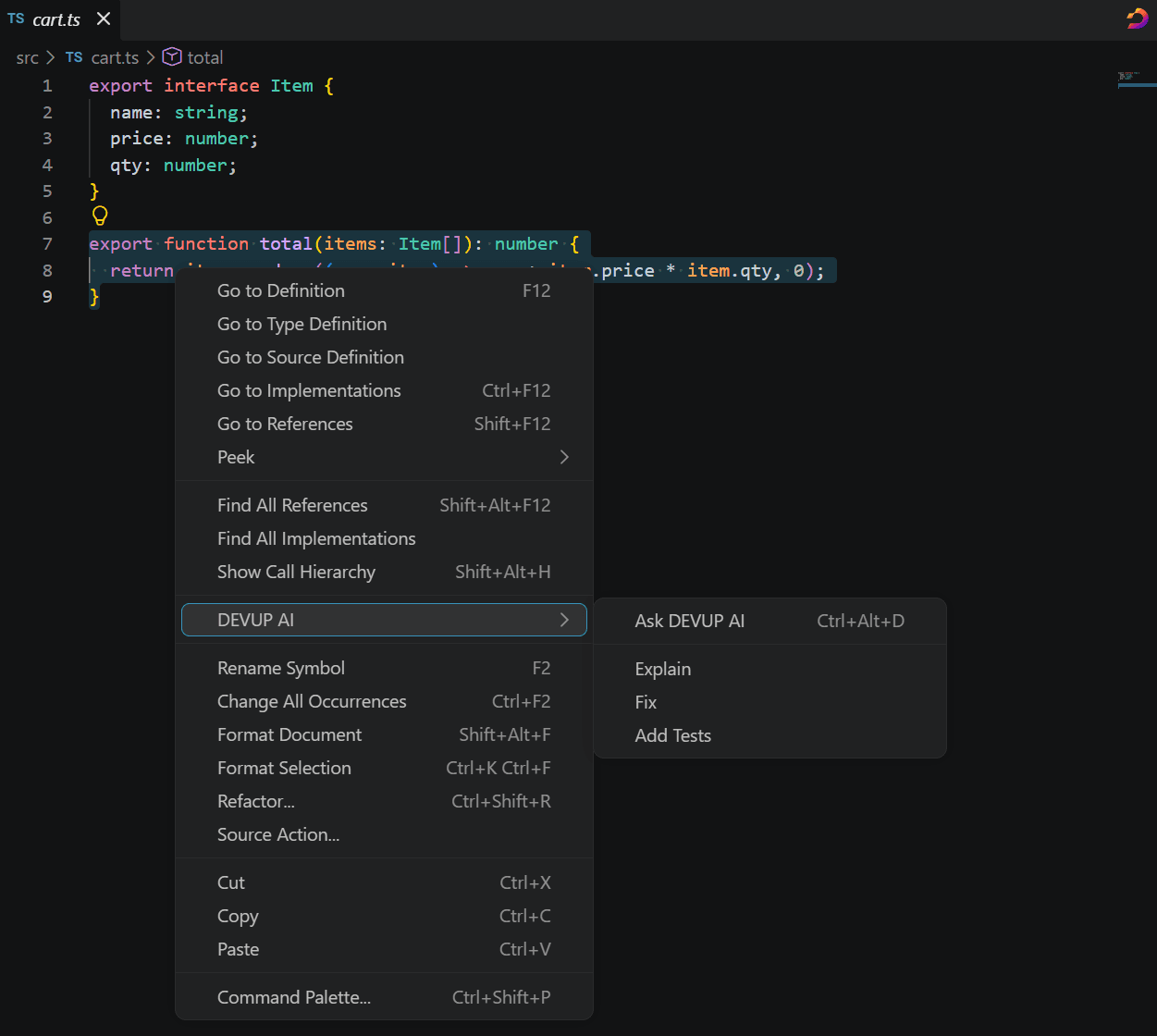
Ask, explain, fix and test from the right-click menu
Select some code and right-click inside the selection: the DEVUP AI submenu offers these actions.
- Ask DEVUP AI: bring the selection into the chat and ask your own question about it.
- Explain: get an explanation of the selected code.
- Fix: get a fix for the selected code.
- Add Tests: get tests written for the selected code.
Compare
What each action does when you choose it
| Action | What happens | Typical job |
|---|---|---|
| Ask DEVUP AI | The selection becomes an attachment and the cursor moves to the message box. Nothing goes out until you send. | A question in your own words about the selected code. |
| Explain | The selected lines go out straight away, with a request to explain them. | Reading code someone else wrote. |
| Fix | The selected lines go out straight away, together with the problems the editor reports on them. | A block with a mistake or with warnings you want gone. |
| Add Tests | The selected lines go out straight away, with a request for tests. | Covering a function you have just written. |
| Fix with DEVUP AI | The code at an error or warning goes to the chat with its problems, and only once you pick the entry. | A problem the editor has already underlined. |
How to explain, fix or test code with AI
- Select the code you want help with in the editor.
- Right-click inside the selection and choose DEVUP AI.
- Choose Ask DEVUP AI, Explain, Fix or Add Tests.
- Follow the answer in the chat. When it suggests a change, Apply shows it as a diff before anything is written.
Walkthrough
How it works in practice: adding tests to a selected function
Take this helper from a sample shop project. It has no tests yet, and the discount handling is easy to get wrong.
// A small shopping cart helper
export function cartTotal(items, discount = 0) {
  const subtotal = items.reduce((sum, item) => sum + item.price * item.quantity, 0);
  return Math.max(0, subtotal - discount);
}- Select the whole
cartTotalfunction, fromexportto the closing brace. - Right-click inside the selection, then choose DEVUP AI → Add Tests.
- The request leaves at once: the selected lines plus a short instruction to write tests, added to the chat you have open.
- Your own instructions and any project rules in use go with it, so an
AGENTS.mdline that names your test runner reaches the model on every action. - Watch the reply arrive. If it heads the wrong way, Stop or Esc ends it early.
- Choose New file on the test code block, save it next to
cart.js, and run your tests. If one does not pass, select the code involved and choose Fix.
Use cases
Everyday jobs for editor actions
Explaining an unfamiliar function. You inherit a module with a dense parsing routine. Select it and choose Explain: the explanation lands in the current chat, where follow-up questions about the same lines keep their context.
Fixing a compiler error from Quick Fix. A type error underlines a function call. Open Quick Fix on it and pick Fix with DEVUP AI: the code reaches the chat together with the problems the editor reports for it.
Asking your own question about a selection. Press Ctrl+Alt+D with code selected, then type something like "Can this loop run past the end of the array?". Ask DEVUP AI waits for your words and sends nothing on its own.
Cleaning up a block with several warnings. Select the whole block and choose Fix. Along with the code, the request lists the problems the editor reports on those lines, so the model sees them next to the code.
A dedicated model for quick actions. Keep one model in the picker for long design chats, and set devupai.editorActions.model so Explain, Fix, Add Tests and Quick Fix always run on another.
Fix errors and warnings from Quick Fix
- Put the cursor on code the editor marks with an error or a warning.
- Open Quick Fix and choose Fix with DEVUP AI.
- That code goes to the chat together with the problems the editor reports for it.
Bring code into the chat with Ctrl+Alt+D
With code selected, Ctrl+Alt+D brings it into the chat. With nothing selected, the same key opens the message box.
In Keyboard Shortcuts, the key belongs to DEVUP AI: Ask DEVUP AI and DEVUP AI: Focus Message Box; assign another key there if you prefer.
Pick the model for editor actions
Editor actions don't have to share the chat's model. Set devupai.editorActions.model to give Explain, Fix, Add Tests and Quick Fix a separate model, or leave them on the model selected in the chat.
See which models are available in the editor, or browse the full model catalog.
Tips
Tips for editor actions
devupai.editor.contextMenushows or hides the DEVUP AI submenu, anddevupai.editor.quickFixdoes the same for the Quick Fix entry.- Quick Fix never acts by itself: nothing is sent until you choose the entry.
- Explain, Fix and Add Tests join the chat you have open, so open a new chat before you run one on unrelated code.
Every switch and command for these actions is listed in the editor actions docs.
Protection
Safeguards for editor actions
- Code from a file that may hold secrets, like a
.envfile or a private key, can't be attached. - In Restricted Mode you can still chat about the code you attach, but DEVUP AI doesn't write to files.
- With Apply, a suggested change shows as a diff, and nothing is written until you accept it.
FAQ
Questions and answers
Select the code, right-click inside the selection, open the DEVUP AI submenu and choose Explain. Fix, Add Tests and Ask DEVUP AI are in the same submenu.
On code with an error or warning, open Quick Fix and choose Fix with DEVUP AI. The code and its problems are sent to the chat. You can also select code and choose Fix from the DEVUP AI submenu.
With code selected, Ctrl+Alt+D brings it into the chat; with nothing selected, it opens the message box. You can assign a different key in Keyboard Shortcuts.
Yes. Explain, Fix and Add Tests send the selected lines as soon as you choose them. Ask DEVUP AI works differently: it attaches the lines and waits for you to write and send a question.
No. It is never applied by itself; it sends the code only when you pick it from Quick Fix.
Yes. Your own instructions and the project rules in use go with Explain, Fix, Add Tests and Fix with DEVUP AI, just as they do with messages you type.
Yes. Set a dedicated model for Explain, Fix, Add Tests and Quick Fix. Without one, they follow the model you chose in the chat.
Related
Start coding with DEVUP Code
Create your DEVUP AI account, then sign in from the editor.


