DEVUP Code: The AI Coding Agent for VS Code, Cursor and Antigravity
DEVUP Code brings more than 100 AI models into VS Code, Cursor and Antigravity. This complete guide covers install, one-click sign-in, the Agent tab with reviewed diffs, context, editor actions, AGENTS.md, the Arabic interface and built-in security.
On this page
DEVUP Code puts more than a hundred AI models next to your code, in VS Code, Cursor and Google Antigravity. It's a full coding assistant with its own panel. You can ask about a function, attach files, and turn a reply into a change you check line by line. An Agent tab plans and edits your project with you, and it writes nothing until you accept.
This guide covers the whole extension, version 1.2.0. It goes from installing it to the Agent tab, the safety rules that protect your secrets, and the settings worth changing on day one. Every screenshot comes from the extension itself.

DEVUP Code at a glance
| Feature | DEVUP Code |
|---|---|
| Editors | VS Code 1.96 or later, Cursor (free plan included) and Google Antigravity, on desktop |
| Where to get it | Visual Studio Marketplace for VS Code; Open VSX for Cursor and Antigravity, from a verified publisher |
| Sign-in | One click in the editor and one on devupai.com. No API key to copy |
| Models | More than 100 chat models, grouped by maker, searchable, with filters for tools, vision, reasoning and PDF |
| Agent | Four modes: Ask, Plan, Ask before edit, Edit automatically. Every file change reviewed in a diff, with Restore files |
| Context | Current file, selection, open editors, any workspace file, @ search, images and PDFs from your computer |
| Editor actions | Right-click → Explain, Fix, Add Tests; Fix with DEVUP Code in Quick Fix; Ctrl+Alt+D |
| Project rules | Personal instructions, AGENTS.md and .devupai/rules.md |
| Languages | Interface in English, French or Arabic (right to left); replies in the language you choose |
| Privacy | Secret files never attached; no usage analytics or telemetry; chats saved on your computer |
| Payment | Free to install; requests paid from your DEVUP balance in Algerian dinars (BaridiMob, CIB, Edahabia) |
DEVUP Code has its own panel. It sits next to your editor's built-in AI chat and doesn't replace it, so you can use both.
Install DEVUP Code
In every editor, search DEVUP Code in the Extensions view. The listing is called DEVUP Code — AI code assistant, the publisher is DEVUP AI, and the panel it adds is titled DEVUP Code.
In VS Code
Open VS Code and press
Ctrl+Shift+Xto open the Extensions view.Search DEVUP Code.
Click Install on DEVUP Code — AI code assistant.
You can also open it directly from the Visual Studio Marketplace. DEVUP Code needs VS Code 1.96 or later.
In Cursor
Cursor installs extensions from Open VSX:
Open Cursor and open the Extensions view.
Search DEVUP Code.
Click Install on DEVUP Code — AI code assistant.
It works on Cursor's free plan, so DEVUP AI models are one install away in any Cursor setup. The listing is also on Open VSX.
In Google Antigravity
Antigravity also uses Open VSX:
Open the Antigravity editor and press
Ctrl+Shift+X.Search DEVUP Code.
Click Install on DEVUP Code — AI code assistant.
Antigravity's own AI chat stays where it is. DEVUP Code adds a panel next to it.
Sign in without copying a key
In the activity bar, open the DEVUP Code panel.
Click Sign in with DEVUP. A devupai.com page opens in your browser.
Review the request and click Allow access.
Switch back to your editor. You're signed in, and you never copied a key.
Behind that click, a few things keep your account clean:
Each editor gets its own API key. It is named after the editor and the device, such as
Cursor — DESKTOP-7Q2K. To leave the device name out, turn offdevupai.signIn.sendDeviceNamebefore you sign in.You can see every editor key. On your API keys page, these keys carry an Editor sign-in badge. Revoke one, and that editor is signed out at its next request.
Signing in again replaces the key. A new sign-in from the same editor installation replaces the key that installation had before, so old keys don't pile up.
The sign-in stays out of your files. It lives in the secure storage your editor provides on this device, not in your settings or your project.
Signing out cleans up. Signing out from Account in DEVUP Code Settings, or with DEVUP Code: Sign Out, also revokes the key this editor received.
Working over SSH, in a remote window or in a browser editor? Paste one of your DEVUP API keys instead, with the API key option in the panel or DEVUP Code: Set API Key in the Command Palette.
Ask your first question
Select a few lines in the editor and press
Ctrl+Alt+D(Shift+Option+Cmd+Don macOS). The selection goes into the chat.Type your question. Ask mode is there for questions about your code.
Press
Enter. The reply appears while the model writes it.
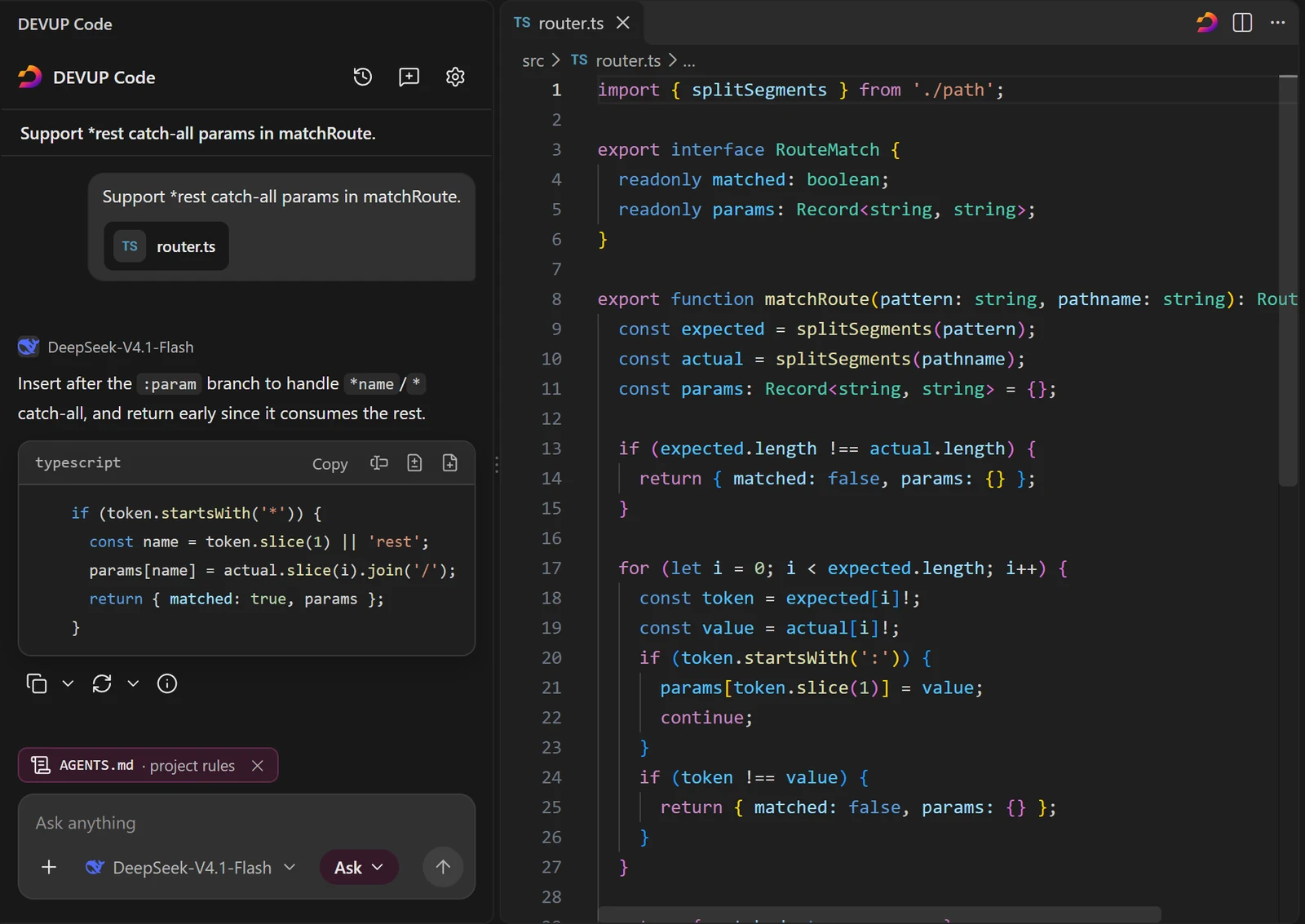
With nothing selected, the same keys put you in the message box. A Thinking indicator counts the seconds until the reply begins. Then the answer streams in, and you can stop it at any moment with Stop or Esc.
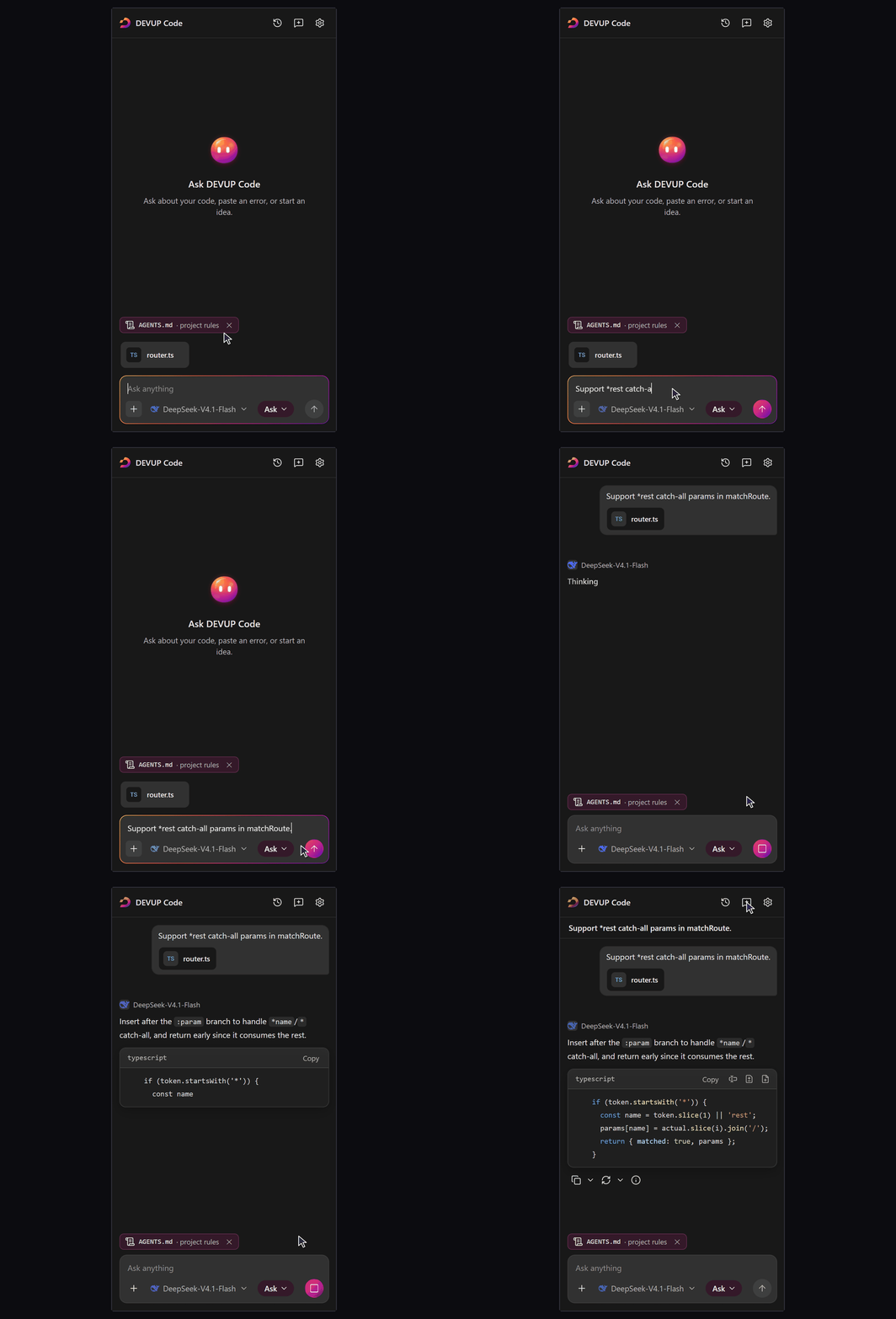
Replies are formatted: coloured code, readable math, and a Copy button on every code block. Under each reply you see the model that wrote it, how long it took and how many tokens it used.
The Agent tab: an AI agent that works with you
For a task that changes files, open the Agent tab. It plans and edits your project with you, one task per tab, beside your code.
There are three ways to open it:
From the mode menu in the side panel's message box, choose Agent. Plan, Ask before edit and Edit automatically in the same menu open the tab directly in that mode, and an unsent draft travels with you.
Run DEVUP Code: Open agent tab from the Command Palette. Each run opens an Agent tab.
Click the DEVUP Code button in the editor's title bar.
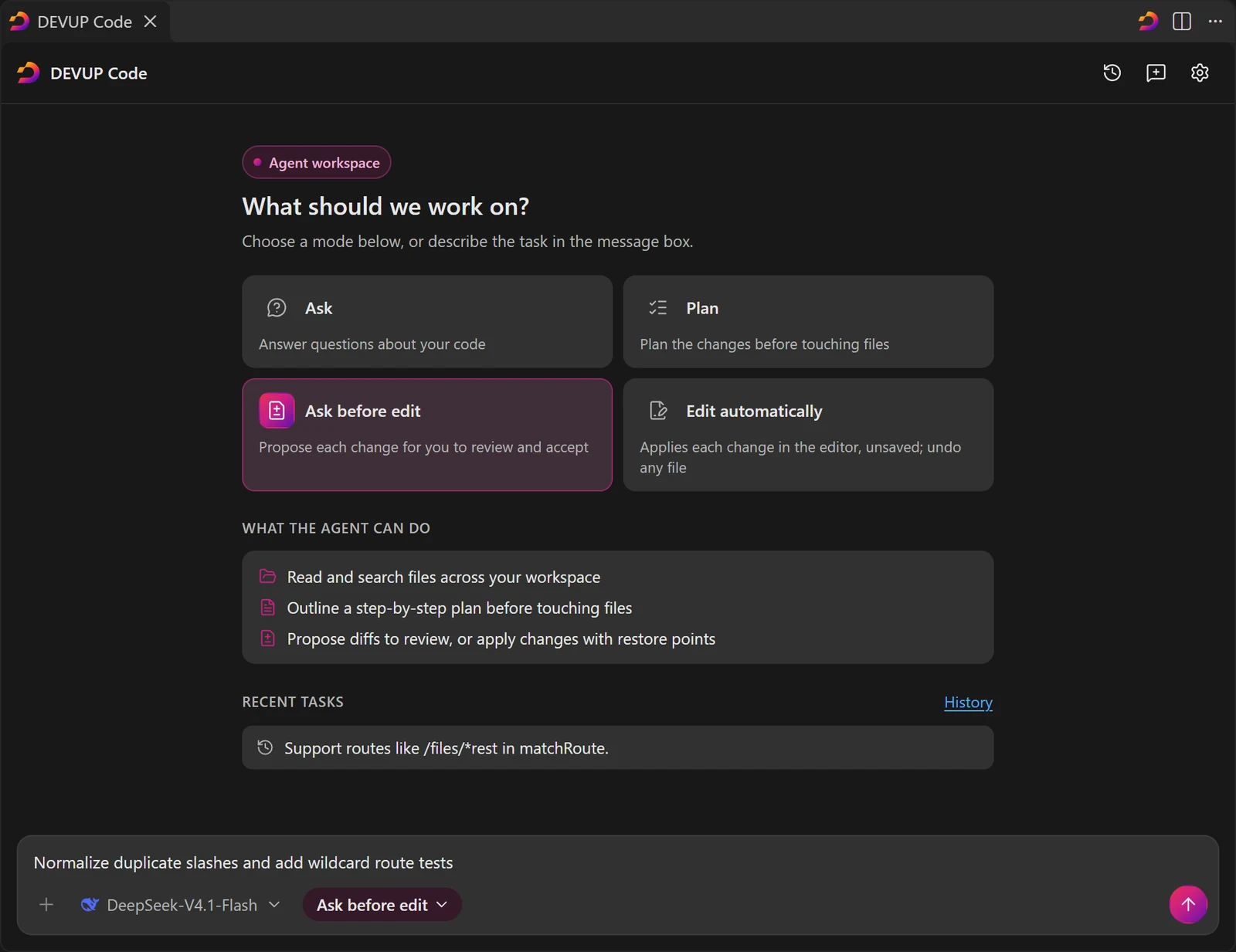
Four modes, one task
| Mode | What it does |
|---|---|
| Ask | Answers questions about your code |
| Plan | Lays out the changes before any file is touched |
| Ask before edit | Proposes each change for you to review and accept |
| Edit automatically | Applies each change in the editor, unsaved; you can undo any file |
Press Shift+Tab in the tab's message box to move to the next mode. Under a finished Plan reply, Start with Ask before edit carries the same task on, with the plan in its context. You agree on the plan first, then the agent carries it out.
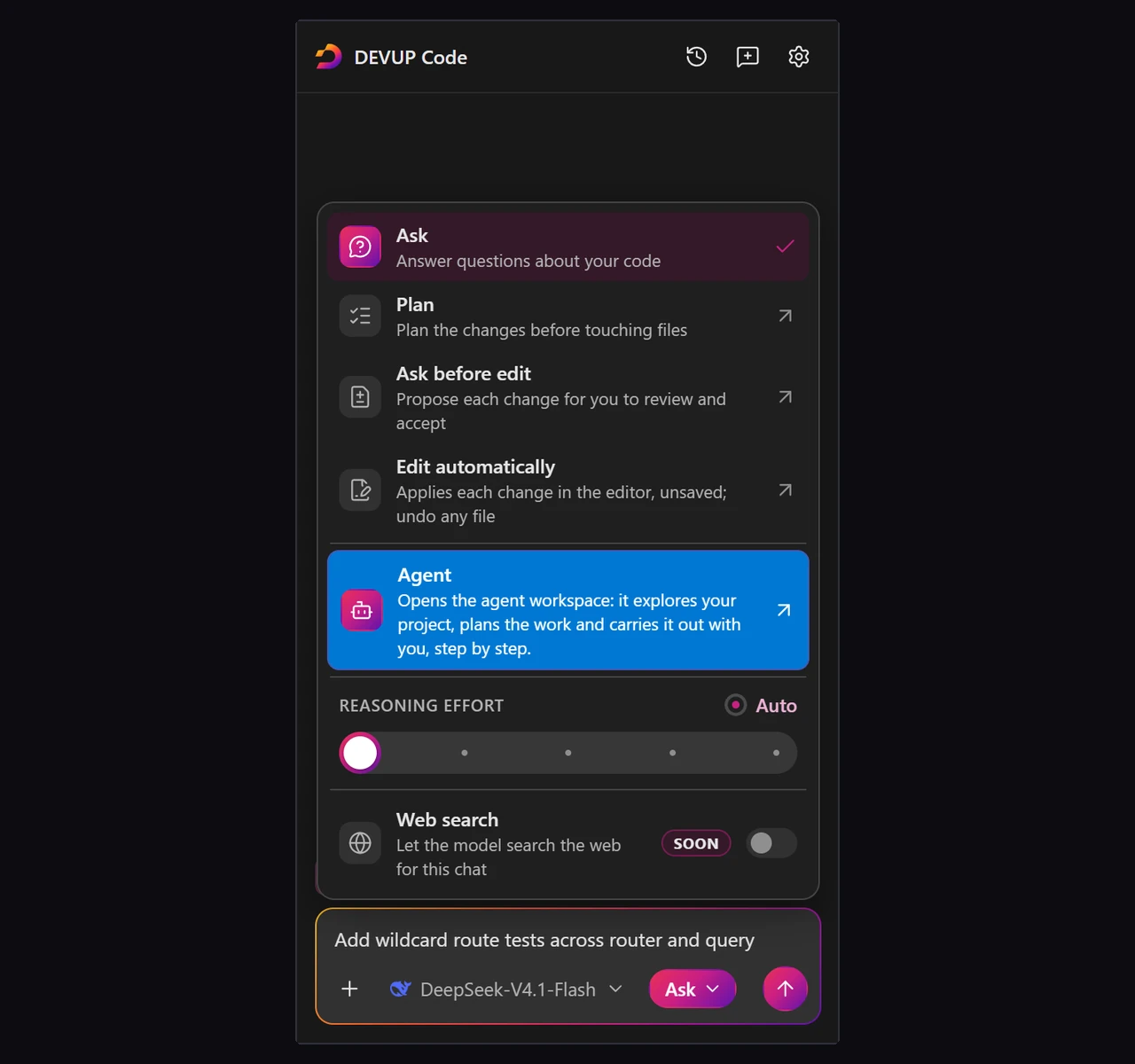
The mode menu also holds a Reasoning effort control for the models that support it, so you can decide how long the model thinks before it answers.
You decide what the agent may read
Whatever the mode, the agent lists, reads and searches your workspace step by step, and every read shows up as a step in the reply. Before its first read, a card asks Which files may this task read? once per task, with three answers:
Allow for this task
Only files I attach
Choose a folder…, which limits the task to the folder you pick
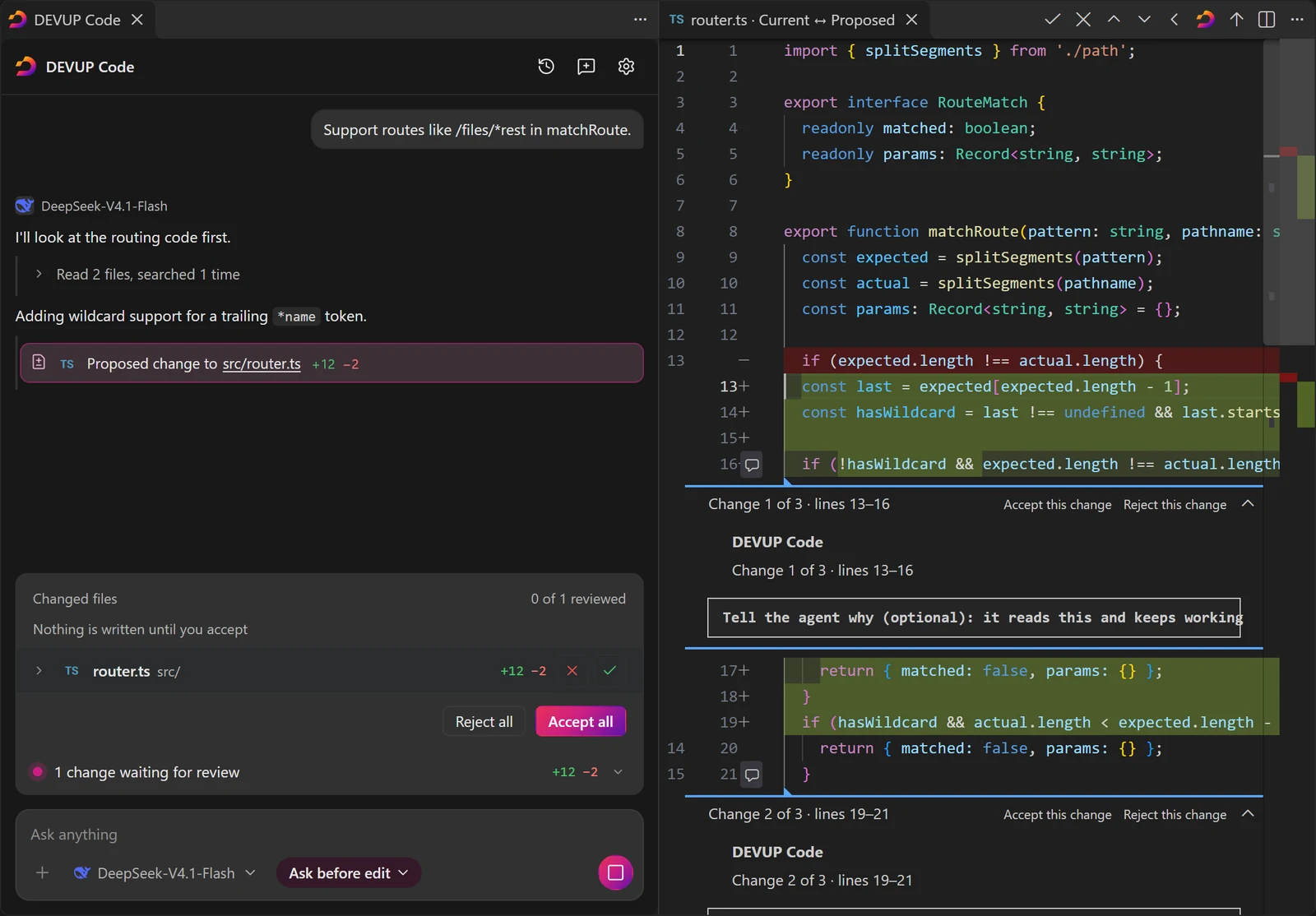
In the screenshot, the agent read two files and ran one search, then explained its plan in one line: adding wildcard support for a trailing *name token. Its proposed change to src/router.ts (12 lines added, 2 removed) waits for review.
Review every change
In Ask before edit, the files the agent wants to change line up in a changes strip above the message box, under the words Nothing is written until you accept. From the strip, you can:
accept or reject each file, or use Accept all and Reject all;
click a file's name to open its diff beside the tab.
Inside the diff, each change has its own Accept this change and Reject this change. There's also a box where you can tell the agent why. It reads what you write and keeps working.
The diff's title bar decides the whole file: DEVUP Code: Accept the agent's change or Reject the agent's change, with Previous file, Next file and Back to the agent next to them.
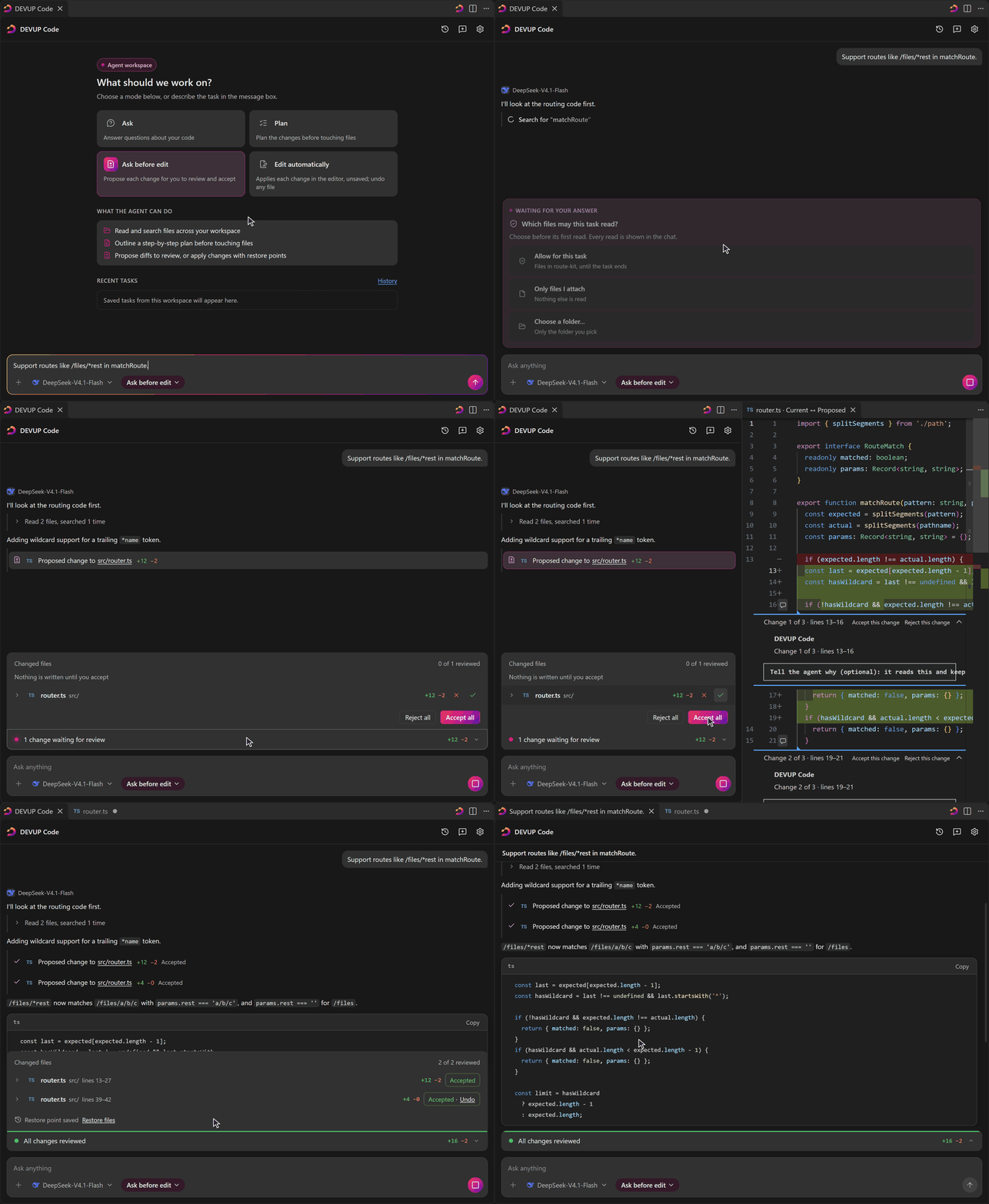
An accepted change lands in the editor as an unsaved edit, and Undo takes it back. Accepting never saves your file: you save it when you're happy.
Restore files: a save point for every reply
The first time a change to a file is accepted in a reply, DEVUP Code copies that file's earlier text. Restore files, shown at the end of the reply and in the changes strip, puts every file of that reply back as it was.
In Edit automatically, the agent applies changes as it goes. Undo and Redo work on one file at a time, and Undo all or Keep all settle the whole reply in one click.
Two settings that shape a task
devupai.agent.taskLimit: set a limit for each task. When a task would go past it, the agent pauses and asks whether to continue. The default,0, means no limit.devupai.agent.alwaysAskPaths: files and folders the agent always warns about before changing them, with a second confirmation at Accept. A built-in list already covers editor and workspace settings, Git settings, CI workflows, agent rule files and similar files. Your entries add to it, and the built-in list can't be shortened.
Each agent task is saved in History as a chat, and an open Agent tab comes back after a window reload.
Apply code from a reply with a diff
Not every change needs the agent. Every finished code block in a chat reply offers three actions:
| Action | What happens |
|---|---|
| Insert | Places the code at your cursor, or swaps it in for your selection, as one edit that a single undo reverses |
| Apply | Opens the change as a diff against your file. Your file is written only when you accept |
| New file | Opens the code in a new, unsaved editor, where you choose the folder and the name |
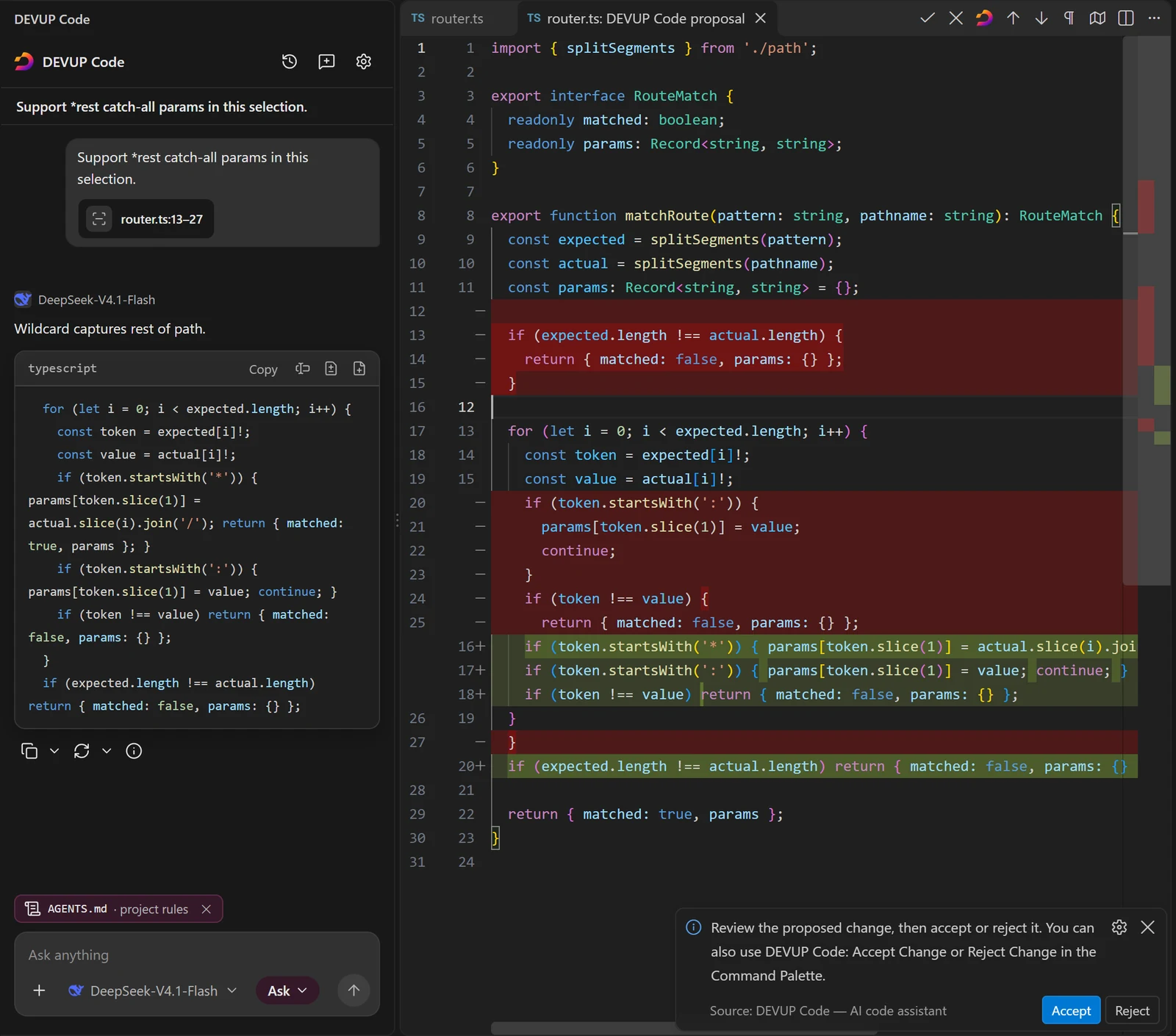
With Apply, the file waits for you while you compare the old and new code. Accept writes the change, Reject discards it, and Undo reverts an accepted change. The same choices are in the Command Palette as DEVUP Code: Accept Change and DEVUP Code: Reject Change. devupai.editor.applyDiff opens the diff beside the editor (the default) or in the same tab.
Give it the right context
A good answer starts with the right code. DEVUP Code lets you choose exactly what goes with your message.
The + menu
Open + in the message box and attach:
the file you are editing;
the code you have selected;
your open editors;
any file in the workspace;
Upload from computer: an image, a PDF or a text file from anywhere on your computer, for models that accept that kind of file.
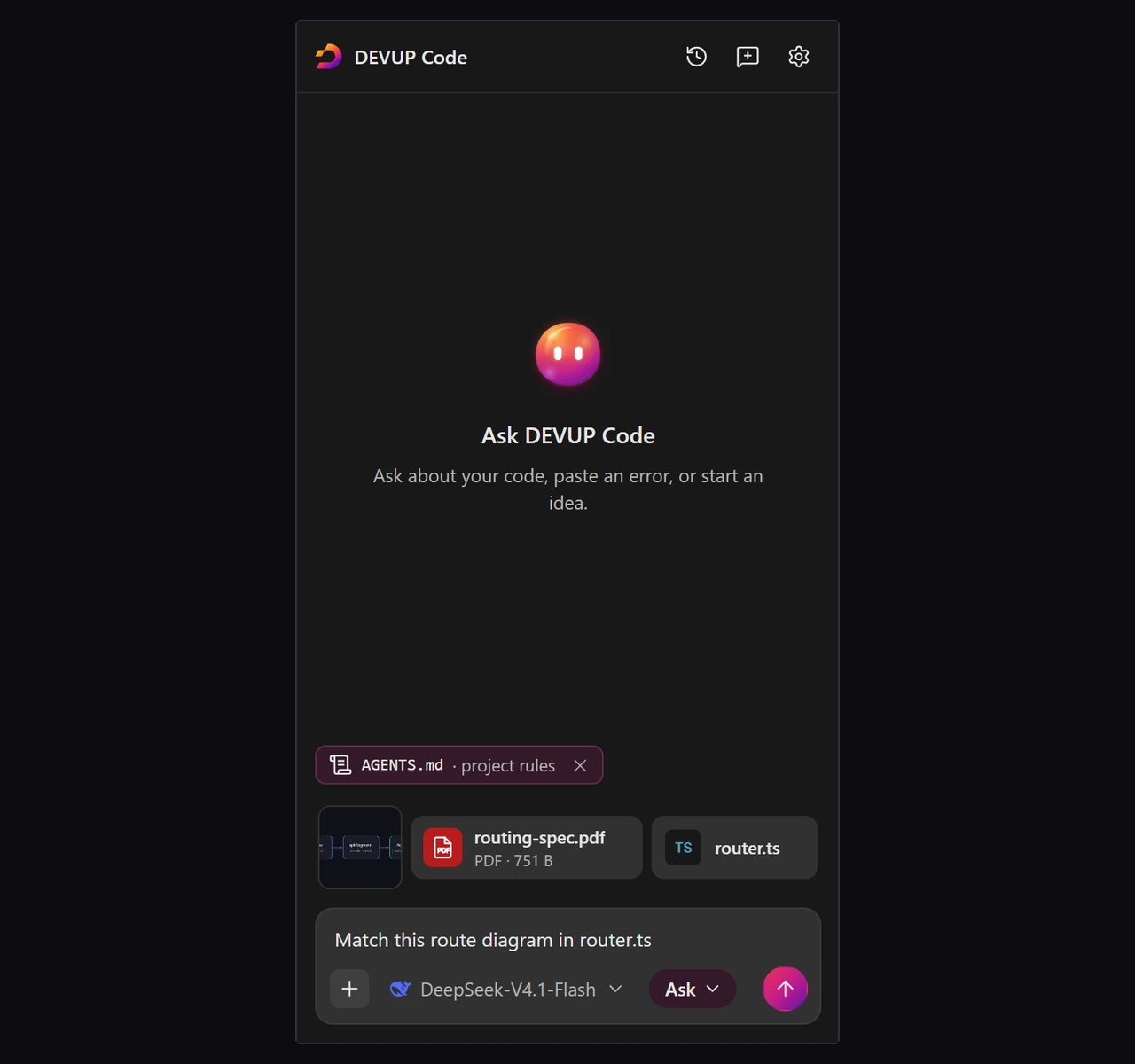
Uploaded images can be PNG, JPEG, WebP or GIF; PDFs go as PDF; any other UTF-8 file goes as text. You can also paste files into the message box, or drop them on it with Shift held down.
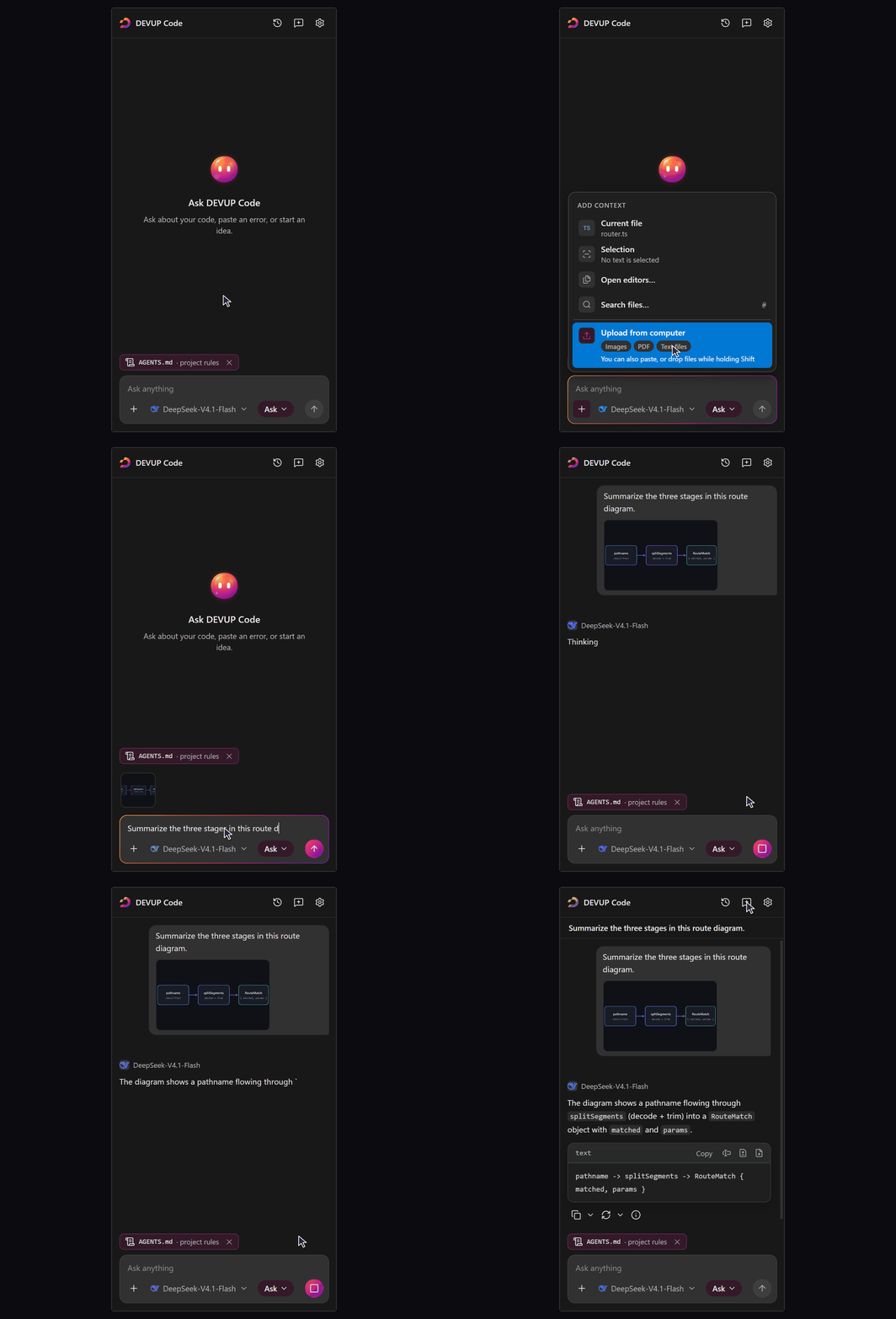
Find a file with @
Type @ and part of a file name, then pick the file from the results. The search covers the folders you have open and leaves out what your project excludes, such as .gitignore entries (controlled by devupai.context.searchFollowsGitignore).
Chips and the context gauge
Each attachment sits above the message box as a chip, and one click removes it. Before you send, a small gauge estimates how much of the model's context the message would fill. Text files can be up to 100,000 characters each.
If a message is more than the selected model can take, DEVUP Code doesn't send it. It tells you why, and you can switch to a model with a larger context. When a chat gets long, it may leave the oldest messages out, and it says so in a note under the reply.
Explain, fix and test code from the editor
You don't have to leave your code to ask about it.
The right-click submenu
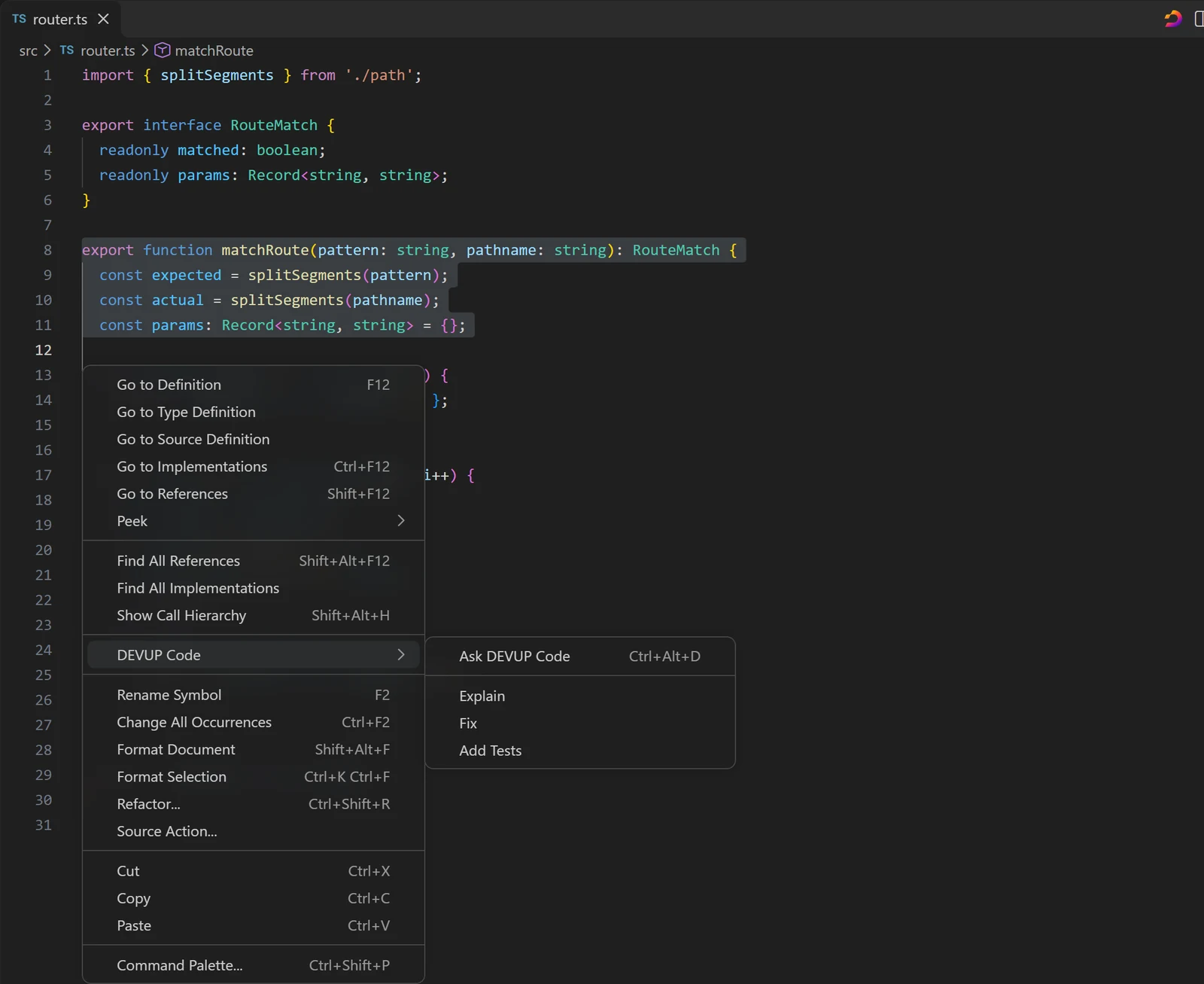
Select code, right-click, and open the DEVUP Code submenu:
Ask DEVUP Code: the code waits in the chat as a chip until you type your question;
Explain: sent at once, with a request to explain the lines;
Fix: sent at once, with the problems the editor reports there;
Add Tests: sent at once, with a request for tests.
Fix with DEVUP Code in Quick Fix
Put the cursor on code with an error or warning, open Quick Fix, and choose Fix with DEVUP Code. The code and the problems reported on it go to the chat together. It never runs on save. devupai.editor.quickFix turns the entry on or off.
A model for quick actions
Explain, Fix, Add Tests and Quick Fix normally use the chat's model. Put a model's id in devupai.editorActions.model, and these four use it instead, while the chat keeps its own. A fast model for quick fixes and a strong reasoning model for the chat is a good pairing.
More than 100 models, one picker
The model picker opens from the message box. The models are grouped by maker, each with its logo. Type to search, or narrow the list with the Tools, Vision, Reasoning and PDF filters.
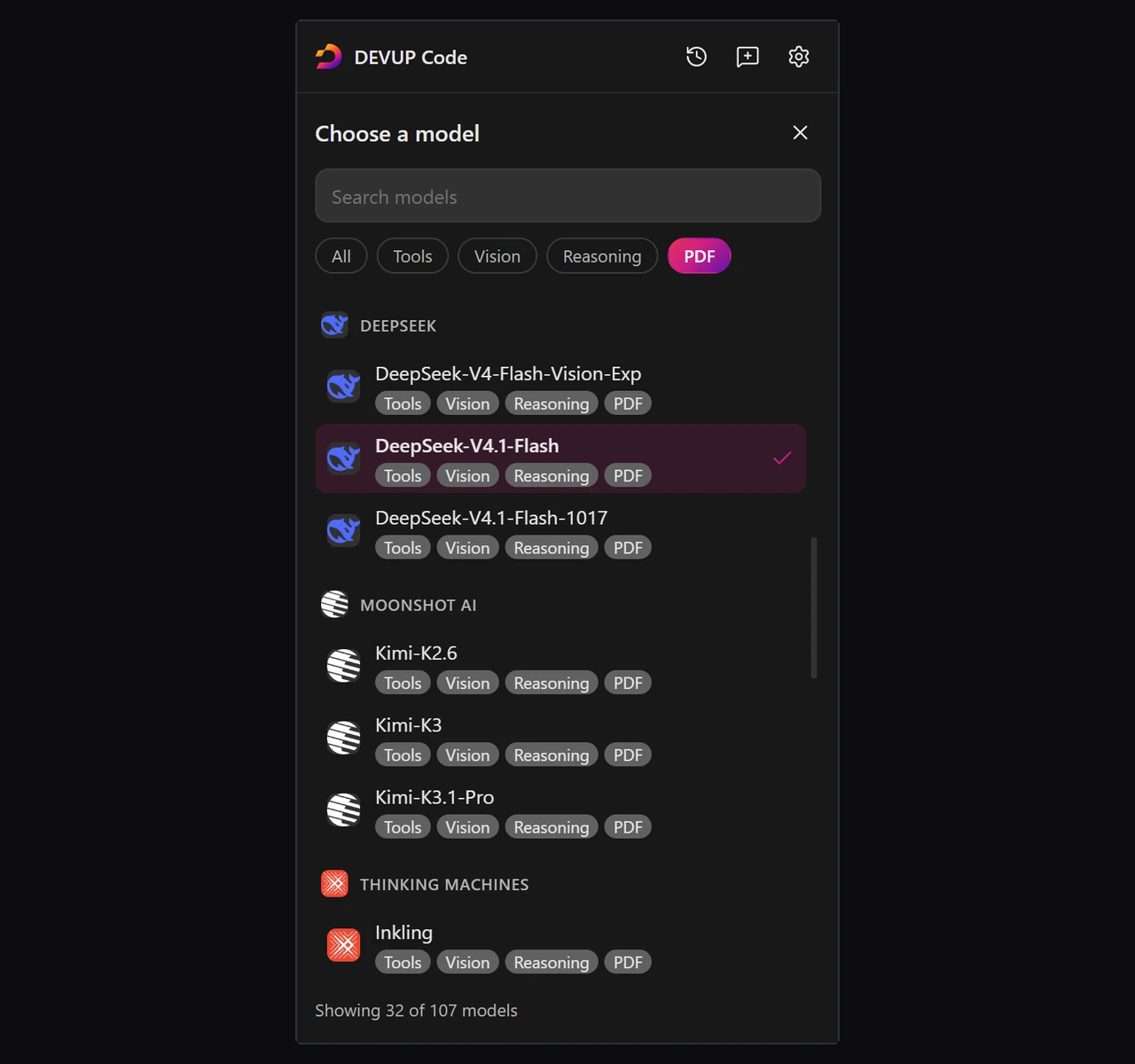
Switch at any point, even halfway through a chat. Each reply stays labelled with the model that wrote it.
Get a second opinion. Ask another model to write the last reply again; your default model doesn't change.
Watch it think. With a reasoning model, the thinking streams live and can be reopened under the reply later.
devupai.chat.thinkingkeeps it open or collapsed.Long output, uncut. A reply that stopped at its length limit can be continued in place. For each model, you can set the longest reply it may write, always within that model's own limit.
Your choice is remembered. The model you pick is still selected the next time you open the editor.
Among the models developers reach for most when they code:
 Kimi-K3.1-Pro
- Tools
- Vision
- Reasoning (optional)
- Structured output
 DeepSeek-V4.1-Flash
- Tools
- Vision
- Reasoning (optional)
- Structured output
 claude-opus-5-5
- Tools
- Vision
- Reasoning (optional)
 gpt-6.1-sol
- Tools
- Vision
- Reasoning
- Structured output
 Qwen3-Coder-480B-A35B-Instruct-Turbo
- Tools
- Structured output
The full list, with a page for every model and family, is on AI models for coding. All of them are in the DEVUP AI model catalog.
Teach it how your project works
Personal instructions
Open DEVUP Code Settings and go to Instructions. Write how you like to work once, up to 4,000 characters, and DEVUP Code sends it with every chat, in every project.
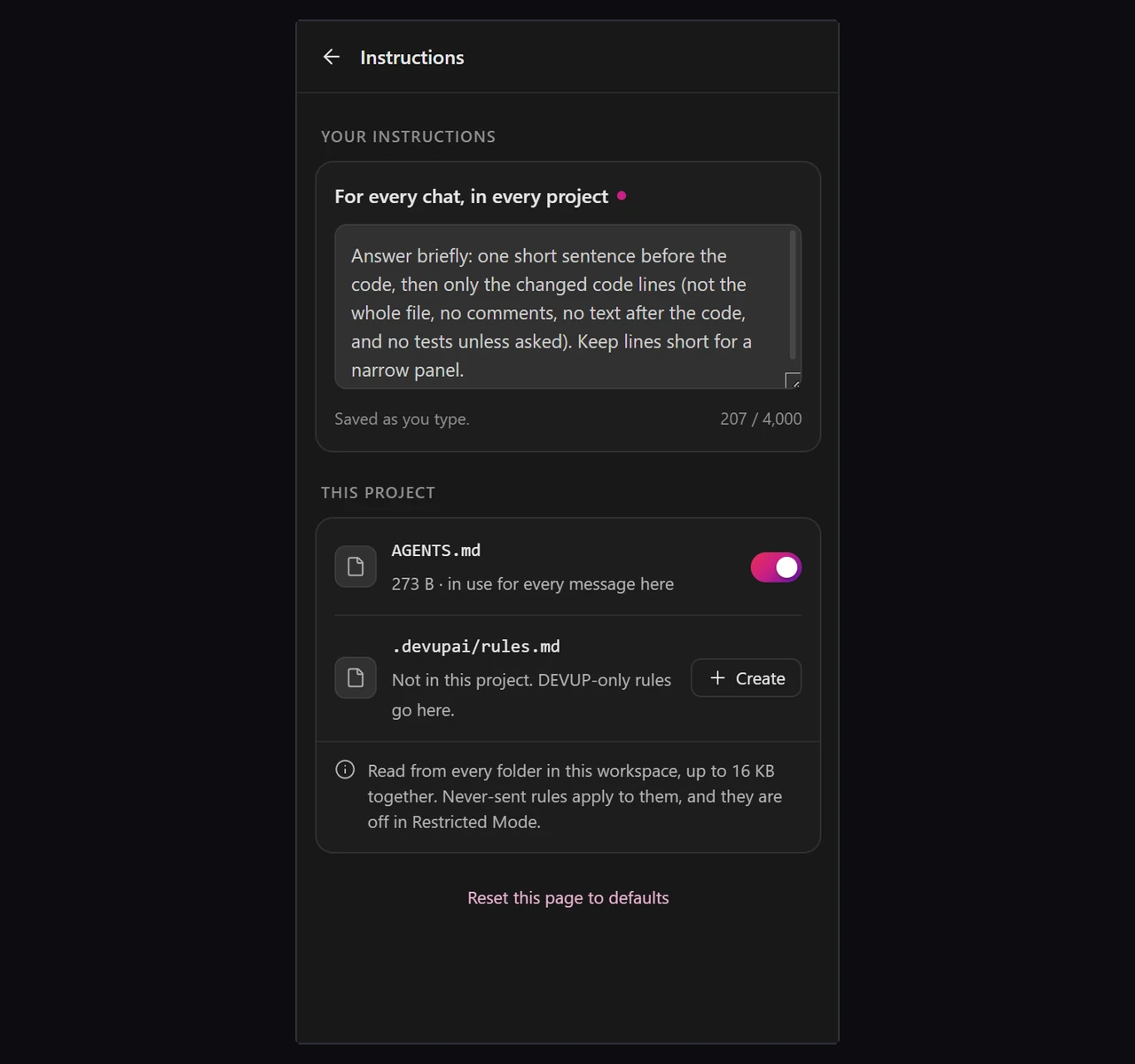
AGENTS.md and .devupai/rules.md
In every workspace folder, DEVUP Code also reads two files at the top level: AGENTS.md and .devupai/rules.md. Commit them, and every teammate who uses DEVUP Code starts from the same rules. Either file can be switched off.
# AGENTS.md

## Project
- TypeScript in strict mode.
- Tests sit next to the code they cover.

## Style
- Small functions with clear names.
- Explain each change in a sentence or two.
The model receives everything in a fixed order:
DEVUP Code's own instructions
the reply language
your personal instructions
AGENTS.md.devupai/rules.md
The Instructions page shows all of it, in that order, so you always know what the model was told.
Reply language
By default, DEVUP Code replies in the language you write in. To always get English, French or Arabic, set devupai.chat.replyLanguage.
A chat built for daily work
Send your way.
Entersends by default; setdevupai.chat.sendWithtoCtrl+Enter.Shift+Enteralways starts a new line.Copy, edit, regenerate. Copy any reply or message, edit a message you sent and send it again, regenerate the last reply or retry after an error.
Safe links. A link in a reply shows its address and asks you to confirm before it opens.
Never miss the end. If you switch windows during a reply that takes more than 20 seconds, a notification brings you back when it finishes.
History on your computer. Chats are saved on this computer. Search them, pin, rename, delete or reopen them.
devupai.history.keepholds the latest 100, 500 or 1,000 chats; pinned chats are always kept. To stop saving, turn offdevupai.history.save.
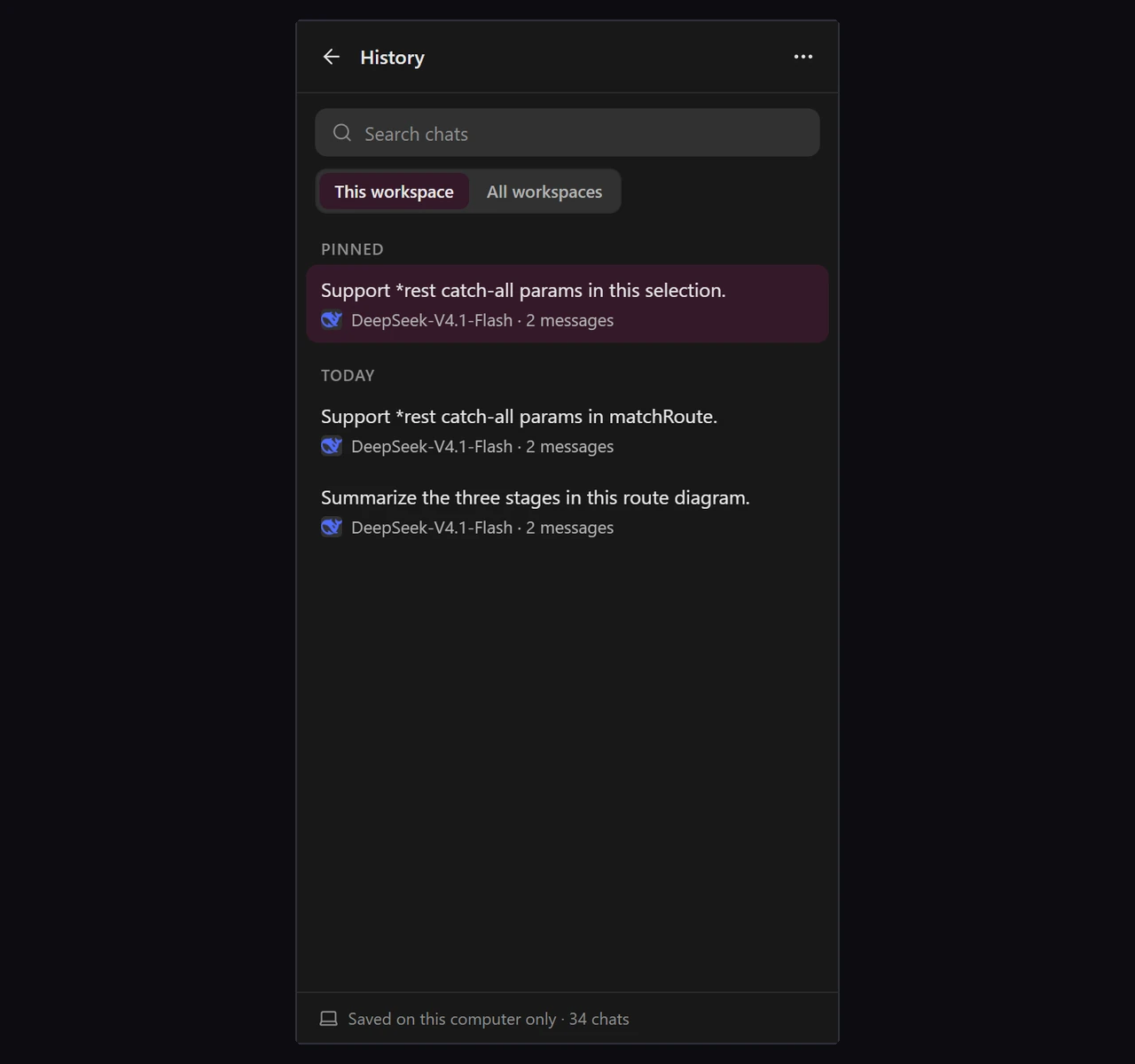
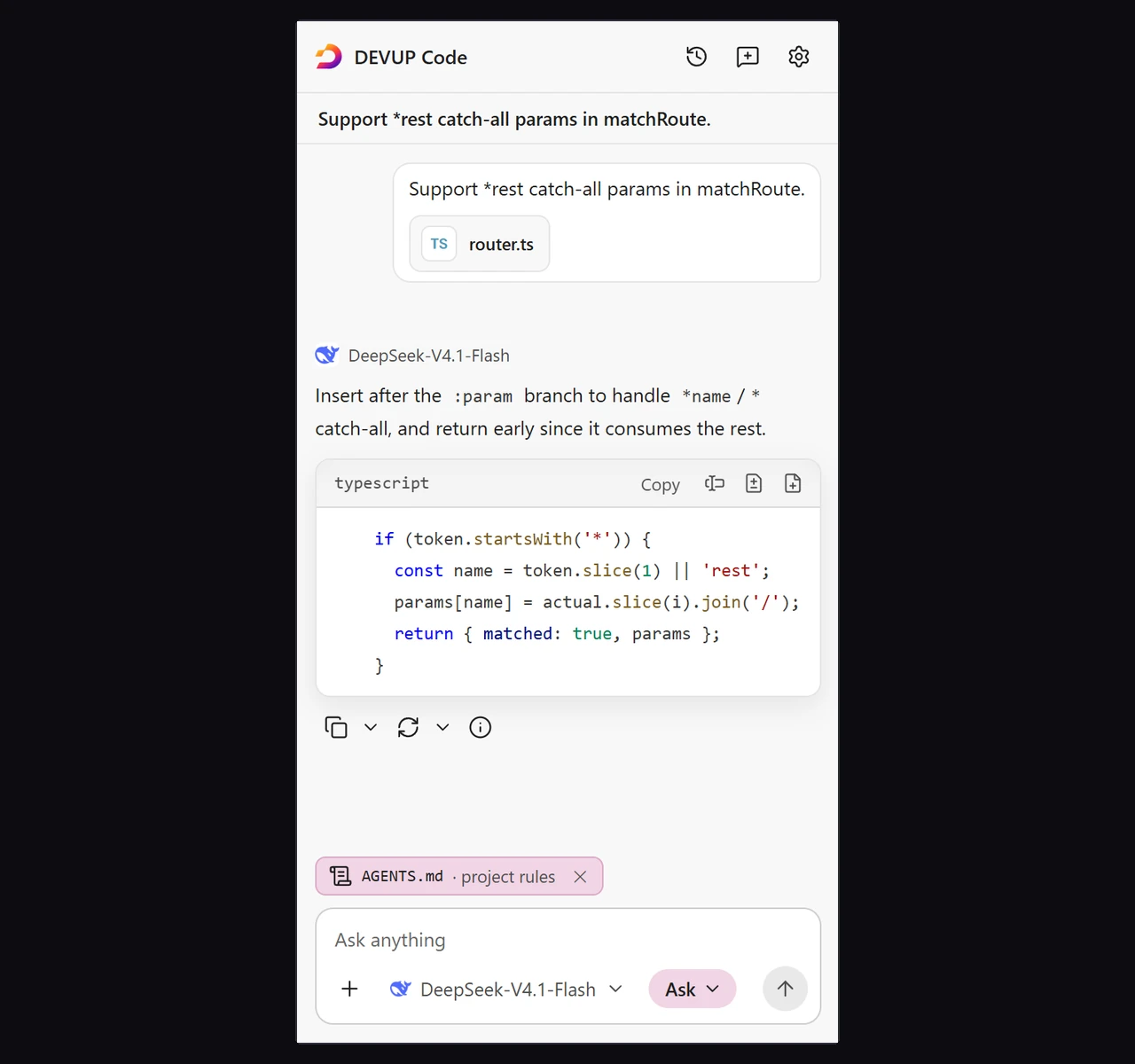
The panel follows your editor's theme, light or dark, and you can adjust the text size and spacing in the appearance settings.
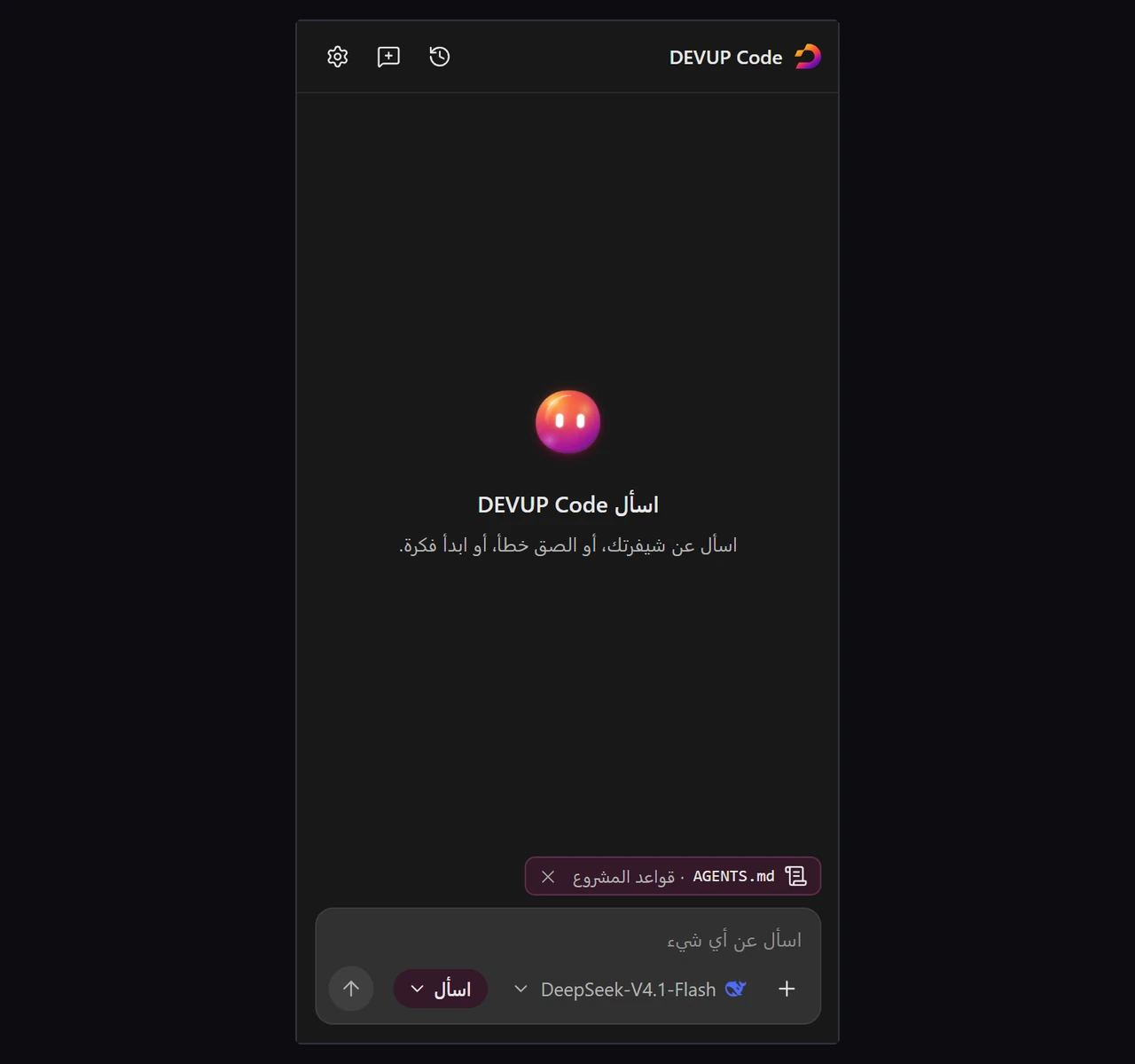
In Arabic, right to left
DEVUP Code speaks your language. Its panel, Settings, notifications and status bar can be in English, French or Arabic. In Arabic, the panel and Settings are laid out right to left. Your code, file names, model names and keyboard keys still read left to right, as written, and numbers keep Latin digits.
Open DEVUP Code Settings and select Appearance.
Under Interface language, pick English, French or Arabic.
Choose Reload the panel in the notification. Only the panel reloads; your editor window stays as it is.
Until you choose, DEVUP Code follows your editor's display language when it offers it, and English otherwise. The interface language and the reply language are two separate settings: you can keep the panel in English and get replies in Arabic, or the opposite.
Security built in
A code assistant reads your project, so DEVUP Code is strict about what it touches.
Secret files stay out
.env files, private keys, certificates, SSH and Git folders, and other files that may hold secrets never appear in file search. They can't be attached, and DEVUP Code never changes them. To protect more files, add .gitignore-style patterns to devupai.context.neverSend, such as secrets/** or *.local.json. Your patterns add to the built-in protection, which can never be removed.
A repository can't change your settings
A workspace's own settings can't change how DEVUP Code behaves. The only thing a repository may add is never-send patterns, and those only add protection.
Hidden characters can't fool you
File and folder names are shown without invisible characters such as hidden direction marks, so a name can't rearrange the text around it. When a name contains such characters, DEVUP Code lists which ones after its path, for example (U+202E), so you can tell it apart from the same name without them.
Restricted Mode
In a workspace you haven't trusted, DEVUP Code still chats and reads what you attach. It writes no files and reads no project rules. In the Agent tab, a task answers without reading files, and Ask before edit, Edit automatically and Restore files come back once you trust the workspace.
That makes it a good way to explore a repository you just cloned. Ask how it starts up, read its code with help, and trust it only when you're ready. Even then, every change made through Apply still waits for your Accept.
| Safeguard | What it covers | Where you control it |
|---|---|---|
| Built-in secret-file protection | .env files, private keys, certificates, SSH and Git folders | Always on |
| Never-send patterns | Any other files you name | devupai.context.neverSend |
| Restricted Mode | No file writes, no project rules | Your editor's workspace trust |
| Diff before writing | Every change from Apply and the agent | Accept or Reject on the diff |
| Editor sign-in keys | A separate key per editor sign-in | The API keys page |
| Link confirmation | Links inside replies | You confirm each address |
The extension contains no usage analytics and no telemetry. When you contact support, the diagnostic info you can copy holds no keys and no chats.
A real session, step by step
Picture a small JavaScript blog. Its slugify helper turns post titles into URLs, but titles with accents or punctuation keep characters that have no place in a link:
export function slugify(title) {
  return title.trim().toLowerCase().replace(/\s+/g, "-");
}

// slugify("Hello World")   returns "hello-world"
// slugify("Crème brûlée!") returns "crème-brûlée!"
Here is the fix, from the first question to the tests:
Select the
slugifyfunction and pressCtrl+Alt+Dto bring it into the chat.Type
@slugand pickslugify.test.js, so the current tests travel with the question. The gauge shows how much of the context the message uses.Choose a model and write the request: replace accented letters with plain ones, drop punctuation, and keep today's output for plain titles. The answer streams in;
Escstops it if it drifts.Click Apply on the reply's code block. The new helper opens as a diff, and
slugify.jsstays untouched while you compare.Accept it, and the change is written. Undo would take it back.
Right-click
slugify, open DEVUP Code and choose Add Tests. Put the new cases intoslugify.test.jswith Insert, or into a fresh file with New file.Run
npm test. If the editor underlines a problem, open Quick Fix on that line and choose Fix with DEVUP Code.Pin the chat in History to come back to it next week.
For a larger task, describe it in the Agent tab in Plan mode, then continue with Start with Ask before edit and review each file.
Settings worth knowing
Open your editor's Settings with Ctrl+, and search devupai.
| Setting | Default | What it does |
|---|---|---|
devupai.chat.sendWith | enter | Send with Enter or Ctrl+Enter |
devupai.chat.thinking | stream | Show a reasoning model's thinking live, or collapsed |
devupai.chat.replyLanguage | same | Reply in your language, or always English, French or Arabic |
devupai.appearance.interfaceLanguage | auto | Panel language: English, French or Arabic |
devupai.editorActions.model | empty | A separate model for Explain, Fix, Add Tests and Quick Fix |
devupai.editor.applyDiff | beside | Open Apply's diff beside the editor or in the same tab |
devupai.context.attachCurrentFile | false | Attach the current file when a chat starts |
devupai.context.neverSend | [] | Your own never-send patterns |
devupai.history.keep | 1000 | How many chats to keep (100, 500 or 1,000) |
devupai.agent.taskLimit | 0 | Pause a task at your limit and ask to continue |
devupai.agent.alwaysAskPaths | [] | Extra files the agent must always warn about |
devupai.appearance.statusBarBalance | false | Show your DEVUP balance in the status bar |
The settings reference lists every setting.
Commands and shortcuts
| Command | Windows / Linux | macOS |
|---|---|---|
| DEVUP Code: Ask DEVUP Code (with a selection) | Ctrl+Alt+D | Shift+Option+Cmd+D |
| DEVUP Code: Focus Message Box (no selection) | Ctrl+Alt+D | Shift+Option+Cmd+D |
| DEVUP Code: Open agent tab | assign your own | assign your own |
| DEVUP Code: Explain / Fix / Add Tests | assign your own | assign your own |
| DEVUP Code: Accept Change / Reject Change | assign your own | assign your own |
To set your own keys, run Preferences: Open Keyboard Shortcuts, search DEVUP Code, double-click a command and press the keys you want.
Pay in dinars, from your balance
Installing DEVUP Code is free. Each request is paid from your DEVUP balance, held in Algerian dinars and topped up with BaridiMob, CIB or Edahabia on your billing page. No international card needed.
Your balance is in DEVUP Code Settings, with Refresh balance and Add funds, and devupai.appearance.statusBarBalance shows it in the status bar. If a request needs more than your balance holds, DEVUP Code tells you and offers Top up and Refresh balance.
Frequently asked questions
Is DEVUP Code free?
Installing it is free. Each request is paid from your DEVUP balance in Algerian dinars.
Which editors does it work in?
VS Code (1.96 or later), Cursor and Google Antigravity, on desktop. VS Code installs it from the Visual Studio Marketplace, Cursor and Antigravity from Open VSX.
Does it work on Cursor's free plan?
Yes. DEVUP Code brings DEVUP AI models into Cursor through its own panel, on the free plan as well.
Does it replace my editor's built-in AI chat?
No. DEVUP Code has a separate panel, and your editor's AI chat stays where it is.
Can the agent change my files without asking?
Only if you choose Edit automatically, and even then each change lands as an unsaved edit you can undo. In Ask before edit, nothing is written until you accept, and Restore files brings a reply's files back.
Does Accept save my file?
No. An accepted change is an unsaved edit that Undo takes back. You save the file yourself.
Can I attach a .env file?
No. Files that may hold secrets, such as .env files and private keys, don't appear in search and can't be attached.
Does it read AGENTS.md?
Yes, along with .devupai/rules.md, from the top of each workspace folder. Either one can be switched off, and neither is read in Restricted Mode.
Can it reply in Arabic or French?
Yes. Set the reply language to Arabic or French, or let it answer in the language you write in. The whole interface can be in Arabic too, right to left.
Where are my chats saved?
On your computer. History lets you search, pin, rename, delete and reopen them.
How do I sign in from a remote or web window?
Paste one of your DEVUP API keys with the API key option or DEVUP Code: Set API Key.
Does DEVUP Code collect usage data?
No. The extension contains no usage analytics or telemetry.
Start coding with DEVUP Code
Install DEVUP Code in VS Code, Cursor or Antigravity, sign in with one click, and ask your first question. Create your DEVUP AI account, then read the DEVUP Code docs for every detail.
About DEVUP AI
AI infrastructure for developers — models, compute and media APIs with local DZD billing via BaridiMob and Edahabia.
Get an API key


